SEO
WordPress SEO Settings: A Step-by-Step Setup Guide
WordPress SEO settings come in four layers: WordPress's own settings, configuring a single SEO plugin, the SEO fields on every post and Google Search Console. This guide shows which screen each step lives on and how to set it, in order.
By Mehmet ÇalışırPublished 14 min read
Contents
This guide is for business owners who want their WordPress site to show up properly on Google, marketing teams who run their own site, and agencies taking over client sites. The answer to “how do I do SEO on WordPress?” is not just “install a plugin”: some critical settings live in the WordPress dashboard, some in the SEO plugin and some inside every post. Below we walk through all of them in setup order and finish with a complete WordPress SEO checklist you can save and reuse.
What are WordPress SEO settings, and why does the order matter?
WordPress SEO settings are the configuration you apply in the WordPress dashboard, in your SEO plugin and at the content level so that search engines can crawl your site, understand your pages and display them properly in results. They don't guarantee rankings on their own, but when they are wrong, even excellent content can stay invisible.
Order matters because each layer builds on the one before: change permalinks after publishing and every URL needs a redirect. We cover the wider picture of crawling, indexing and speed in our technical SEO checklist; this article is its WordPress-specific companion.
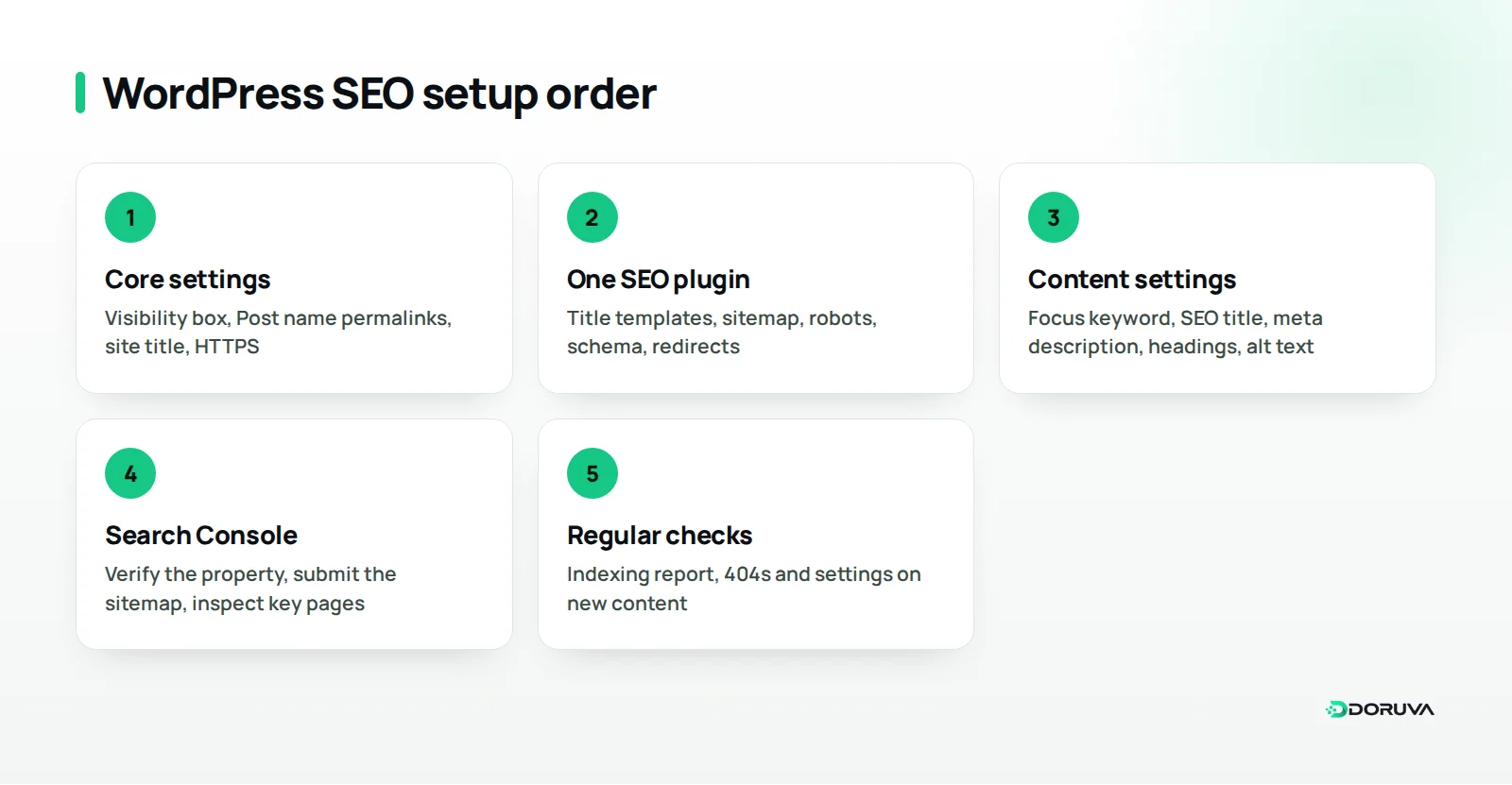
| Layer | Where | What you set | When |
|---|---|---|---|
| Core settings | Settings > General, Reading, Permalinks | Visibility, URL structure, site name, HTTPS | Before launch |
| SEO plugin | The plugin's settings screens | Title and meta templates, sitemap, robots, schema, redirects | Right after the core settings |
| Content level | Post and page editor | Focus keyword, SEO title, meta description, headings, alt text | Every time you publish or update |
| Search Console | Google Search Console | Verification, sitemap, indexing reports | Right after launch, then regularly |
Which SEO settings does WordPress itself have?
WordPress core has four settings that directly affect SEO: search engine visibility, the permalink structure, the site title and tagline, and running the site on an HTTPS address. Check them before you install any plugin.
The search engine visibility checkbox
Under Settings > Reading there is a “Search engine visibility” checkbox labelled “Discourage search engines from indexing this site”. When it is ticked, WordPress tells search engines not to index the site. That is useful during development, but forgetting to untick it after launch is one of the most common reasons a brand-new site never appears on Google.
The checkbox is only a request; to keep a staging site private, use password protection.
Permalink structure
Settings > Permalinks is where you choose the format of your URLs. For most sites, “Post name” (/%postname%/) gives the cleanest, most readable result: example.com/dental-implants/ instead of example.com/?p=123. If you change the permalink structure after content is live, you need to plan 301 redirects for every old URL, so make this decision on day one.
Unless dates genuinely matter, as on a news site, leave the year and month out of the URL; an updated guide would carry its old date forever.
Site title and tagline
The “Site Title” under Settings > General is the brand name many themes and SEO plugins append to page titles, so keep it short and consistent. If an older install still has a default tagline like “Just another WordPress site”, change or remove it, because some themes and plugins use that field in the homepage title or description.
WordPress Address, Site Address and HTTPS
The “WordPress Address (URL)” and “Site Address (URL)” fields on the same screen define the site's canonical address. If your server has a valid SSL certificate, both should start with https://. If the fields are greyed out, the addresses are defined in wp-config.php with the WP_HOME and WP_SITEURL constants.
Moving to HTTPS doesn't end with those two fields. You also need a server-level 301 redirect from the http version to https, and old http links in the database need updating, otherwise browsers show mixed content warnings. It's also a good moment to look at server and theme performance; our Core Web Vitals guide explains how to measure and improve it.
How do you choose and configure an SEO plugin, step by step?
The practical way to add SEO to WordPress is to install one SEO plugin that handles what core doesn't: title and meta templates, a more capable sitemap, structured data and redirects. Once you've picked one, there are five areas to configure in order.
Pick the right plugin first
The most common choices are Yoast SEO, Rank Math and All in One SEO; for sites publishing in Turkish, the free Doruva SEO is another option. All cover the basics; they differ in schema flexibility, free-version features and language support. Ask:
- Does the free version include redirects and local SEO, or will you need another plugin?
- Does the content analysis work properly in the language you publish in?
- Can you switch off features you don't use?
- Can it import data from the plugin you use today?
- Can editors see the content analysis while technical settings stay with administrators?
Never run two SEO plugins at the same time. Both output title tags, canonicals, sitemaps and schema, so your pages end up with duplicate and conflicting tags. When you switch, import your data first, then deactivate the old plugin.
1. Title and meta description templates
Templates decide how titles and descriptions are generated automatically for each content type. A common, safe pattern for posts is “Post title – Site name”, which most plugins express with variables such as %title% %sep% %sitename%. Define separate templates for categories, tags, author archives and search pages too, or dozens of pages may end up sharing one title.
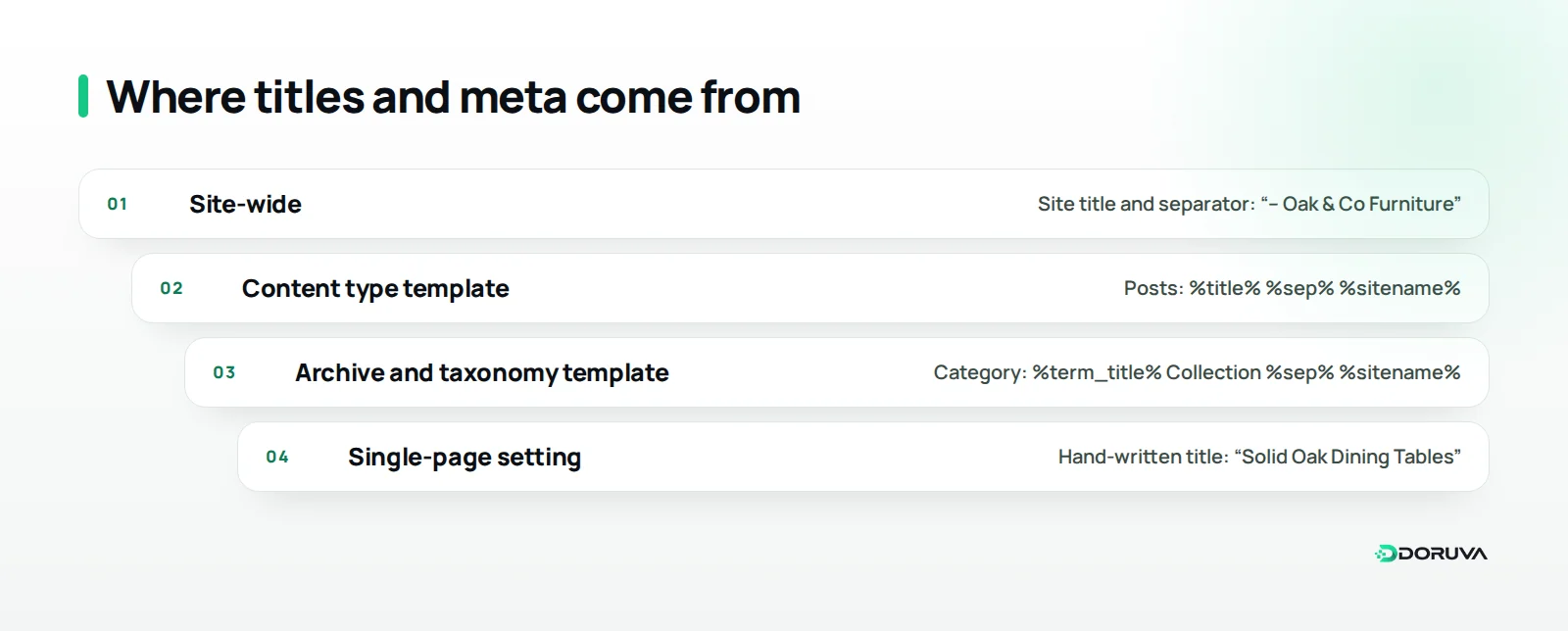
A template is a safety net, not the goal: write titles and descriptions for key pages by hand. Our word and character counter helps you check their length.
2. XML sitemap
Since WordPress 5.5, core has had a built-in XML sitemap at /wp-sitemap.xml. SEO plugins usually disable it and generate their own, for example adding images or leaving out pages you've set to noindex. What matters is that exactly one sitemap is live: note the address of your plugin's sitemap and submit that one to Search Console.
Exclude tag archives, attachment pages and other thin archives. Google's documentation on building a sitemap also explains that a sitemap should list the canonical URLs you want indexed.
3. Robots settings and robots.txt
Robots settings work at two levels: the meta robots tag on individual pages (noindex, nofollow and so on) and the site-wide robots.txt file. If there is no physical robots.txt in the root directory, WordPress serves a virtual one, and many SEO plugins let you edit it from the dashboard.
- Set noindex on pages that have no value in search: internal search results, thank-you pages, thin tag archives.
- Don't block CSS, JavaScript or image folders; Google needs them to render pages.
- To keep a page out of the index, use noindex rather than a robots.txt block; a noindex tag on a page that can't be crawled is never read.
- Add the full address of your sitemap to robots.txt.
4. Schema (structured data) basics
Structured data tells search engines what a page is (an article, a product, a local business) in a machine-readable form; on WordPress it is usually added by the SEO plugin as JSON-LD. During setup, start by choosing whether the site represents an organisation or a person and entering the official name and logo; the plugin then combines that with pieces such as WebSite, WebPage and Article.
Following Google's 2023 announcement on HowTo and FAQ results, FAQ rich results are limited to well-known government and health websites, and HowTo rich results are no longer shown. That markup is still valid schema.org vocabulary and helps search engines understand the page, but don't expect expandable Q&A results on every site. We explain the role of structured data in AI answers in our guide to answer engine optimization.
5. Redirects
When you change a page's URL or remove a page, you need a 301 redirect to send visitors and search engines from the old address to the right place. WordPress core remembers old post slugs to some extent and redirects them, but that doesn't cover every content type or situation. Use redirect management in a plugin or server rules, and monitor 404s.
Which SEO settings should every post and page have?
At the content level, check six things before every publish: focus keyword, SEO title, meta description, slug, heading structure and image alt text. You'll find them in your SEO plugin's editor panel or in the editor's own settings.
Focus keyword
The focus keyword clarifies, for you, which search the page answers; the plugin's content analysis scores the text against it. Give every page a different main phrase, because two pages targeting the same phrase compete with each other. For a furniture store, “solid oak dining table” might be the focus of a category page, while “how to choose a dining table” belongs to a blog guide.
Never distort the text to raise a score. Analysis tools that match keywords too literally can nudge writers into unnatural repetition, especially in heavily inflected languages such as Turkish; natural writing for the reader always comes first.
SEO title and meta description
The SEO title is what appears in search results, and it doesn't have to match the H1 on the page. Put the main topic first and the brand last. The meta description doesn't directly affect rankings, but it does influence the decision to click: say concretely, in a sentence or two, what the page offers. The Google preview that most plugins show in the editor lets you see whether the text will be cut off before you publish.
Slug
Keep the slug short, lowercase and meaningful, like /how-to-choose-a-dining-table/, and if you change the slug of a published post, redirect the old address to the new one.
Heading structure and trust signals
In most themes the post title is output as the H1 automatically, so don't add a second H1 in the content; structure main sections with H2 and sub-sections with H3. For trust elements such as author information, sourcing and showing first-hand experience, see our guide to E-E-A-T.
Images and alt text
Give every content image alt text that describes what it shows; purely decorative images can have empty alt text. Resize and compress files before uploading and give them meaningful file names.
How do you set up Google Search Console and connect your site?
Setting up Google Search Console takes four steps: add the site as a property, verify ownership, submit your sitemap and start monitoring the indexing reports.
- Choose the property type: a Domain property is verified through a DNS record and covers every version (http and https, with and without www). A URL-prefix property covers only the address you enter and can be verified with methods such as an HTML tag or an HTML file.
- Verify ownership: if you choose the HTML tag method, most SEO plugins have a field where you paste the verification code, so you don't need to edit theme files.
- Submit the sitemap: enter the address of your plugin's sitemap in the Sitemaps report. Google retired its sitemap “ping” endpoint in 2023; submitting through Search Console and listing the sitemap in robots.txt is enough.
- Inspect key pages: use the URL Inspection tool on your homepage and a few critical pages to see how Google views them and whether they are indexed.
- Monitor the reports: the Page indexing report lists pages that aren't indexed, with reasons. If you see something unexpected in the first weeks, such as “Excluded by noindex tag”, check the Reading checkbox and your plugin's robots settings first.
How do you configure WordPress SEO with Doruva SEO?
Doruva's free Doruva SEO plugin brings the plugin and content steps in this guide into one setup flow. It is currently at version 1.0.6 with an English and Turkish interface, has no Pro version or locked features, and runs on WordPress 6.4 and later. It is coming soon to WordPress.org; the product page shows the current status.
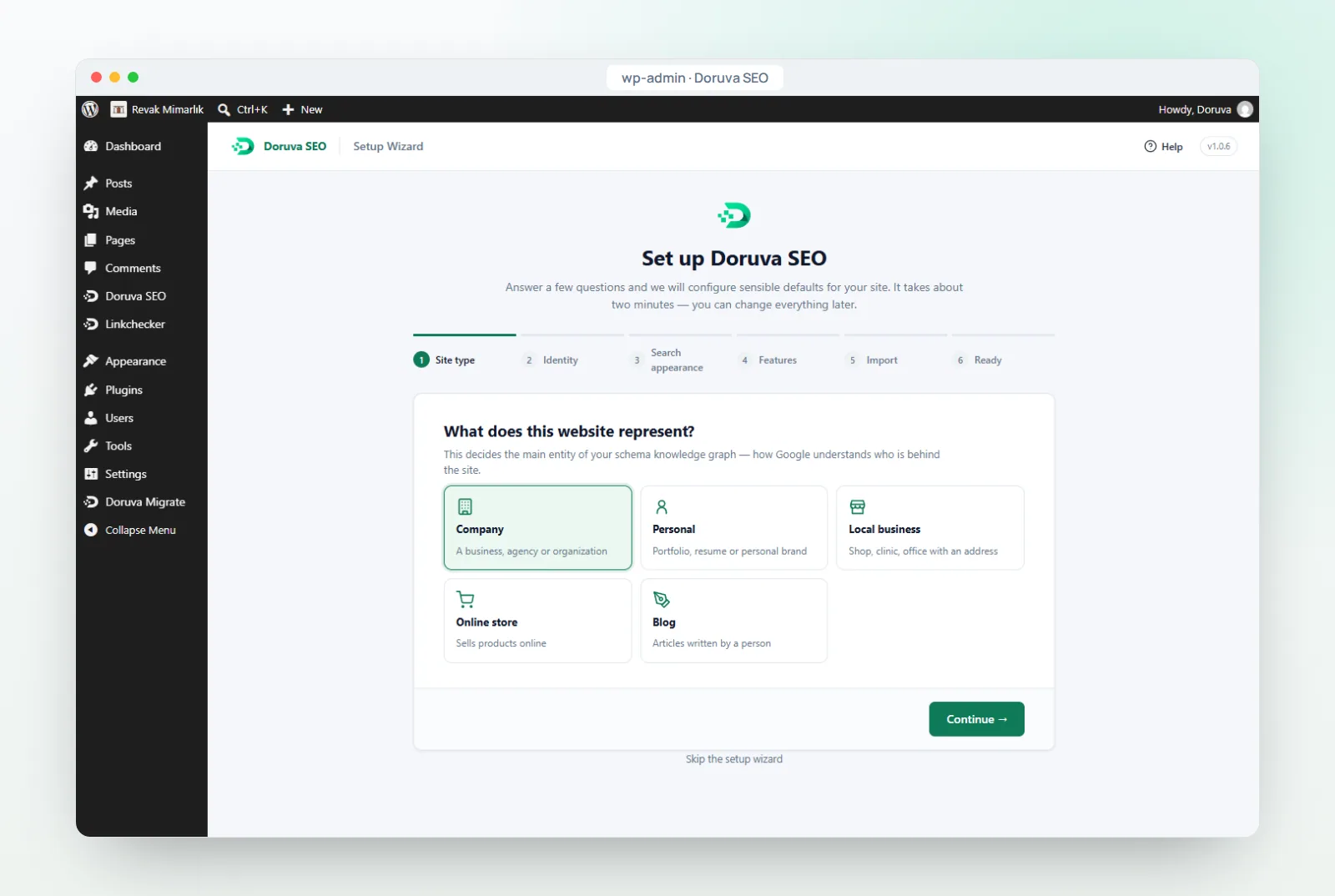
- Setup wizard: it opens once on activation and walks you through the basics, starting with your site type. You can export your settings and import them on other sites, so agencies managing several client sites can reproduce the same setup quickly.
- Modules: on the Dashboard you switch modules such as titles and meta, schema, sitemaps, redirects, the 404 monitor, local SEO and the robots.txt editor on or off individually; disabled modules load no code.
- Titles and meta: templates with variables for every post type, taxonomy, archive, search and 404 page, with robots directives and canonical URLs managed in one place.
- Language-aware content analysis: English texts are scored with Flesch Reading Ease, while Turkish texts get suffix-aware keyword matching (finding “ayakkabı” inside “ayakkabılar” and “ayakkabıyı”), consonant mutation handling and the Ateşman readability formula. You can add four secondary keywords to the focus keyword and see the results of more than 20 checks as a 0–100 score.
- Switching: if you use Yoast SEO or Rank Math, titles, descriptions, focus keywords, robots settings and canonicals are imported; the importer only reads and never deletes the old data. Deactivate the old plugin once the import is done.
Plugin features change between versions, so check the current feature list on the product page before you decide. You'll find all our free tools, including the site migration and backup plugin Doruva Migrate, on our WordPress plugins page.
Common WordPress SEO mistakes
Most WordPress SEO problems come from one forgotten setting or two tools fighting each other, not from complex technical issues:
- Leaving the visibility box ticked: the box ticked during development stays ticked after launch, and the site stays out of the index for weeks.
- Changing permalinks without redirects: every old URL returns a 404 and the link equity it earned is lost.
- Running two SEO plugins: duplicate titles, canonicals and schema appear on every page.
- Submitting several sitemaps: both the core sitemap and the plugin sitemap stay registered in Search Console, and the old one keeps reporting errors.
- Leaving thin pages indexable: attachment pages, empty tag archives and internal search results fill the index with low-value URLs.
- Distorting text for a score: repeating a keyword unnaturally drives readers away, and a green light doesn't mean good content.
- Moving to HTTPS without redirecting http: both versions stay reachable and signals are split.
Once your settings are in place, run the site through our free SEO checker to spot anything you may have missed.
The WordPress SEO checklist: save it and use it on every site
Work through this list from top to bottom when you launch a new site or audit one you've inherited.
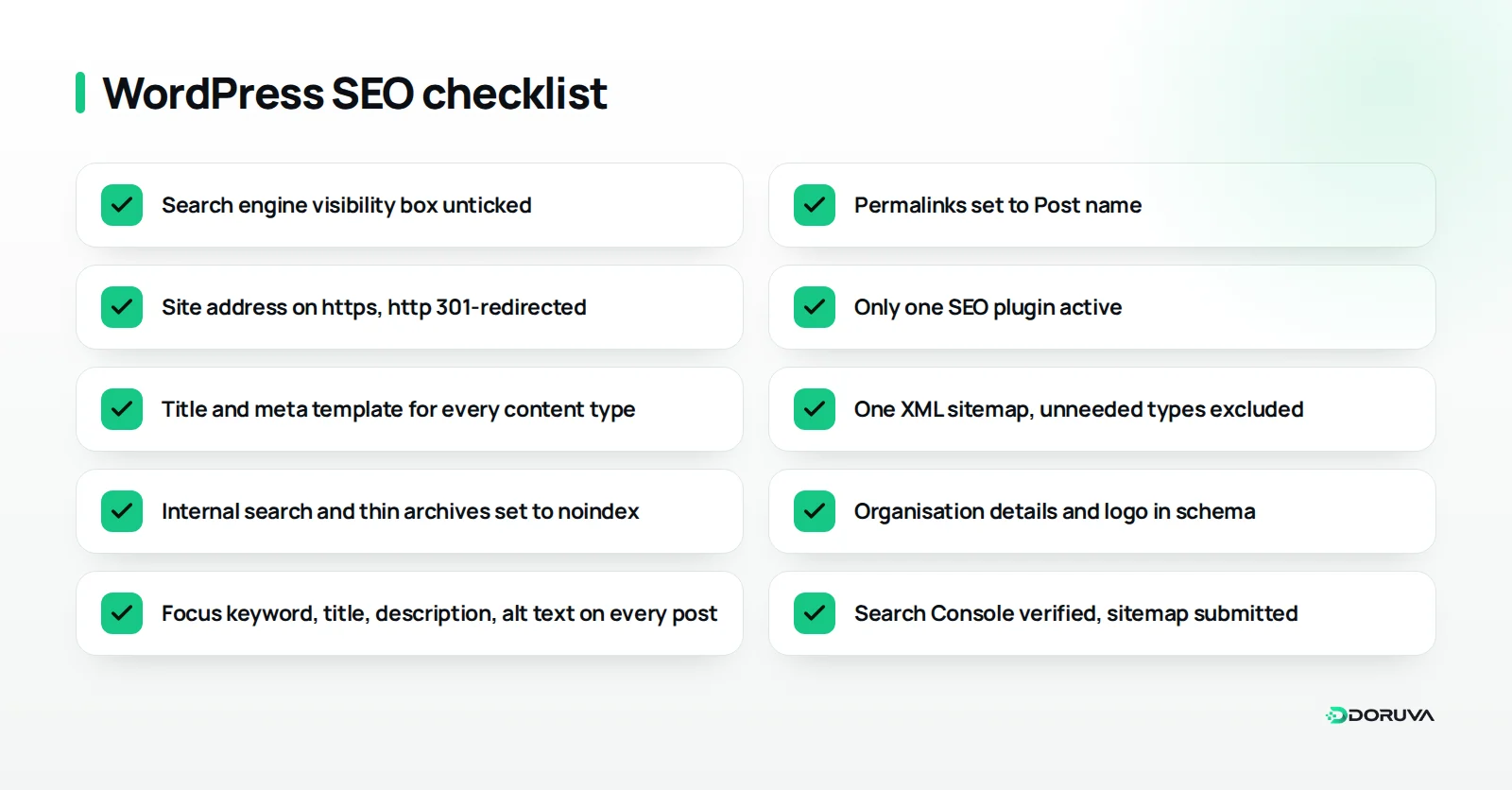
Before launch
- Permalinks set to “Post name” or another deliberate, consistent structure
- Site title is the short brand name; tagline updated
- WordPress Address and Site Address start with https; http redirects with a 301
- One SEO plugin installed and configured
During plugin setup
- Title and description templates for every content type and archive
- One XML sitemap live, unnecessary content types excluded
- Internal search and thin archives set to noindex
- robots.txt doesn't block CSS or JavaScript and lists the sitemap
- Organisation or person details, logo and social profiles entered for schema
- Redirects and 404 tracking ready
On every post
- A unique focus keyword
- A hand-written SEO title and meta description
- A short, meaningful slug
- One H1 and a clean H2/H3 structure
- Compressed images with alt text
After launch
- “Discourage search engines” is unticked
- Property verified in Search Console and sitemap submitted
- Key pages checked with URL Inspection
- Page indexing report reviewed regularly in the first weeks
Summary: what comes after your WordPress SEO settings?
Once WordPress SEO settings are configured properly, they remove the technical barriers between your site and search engines: pages get crawled, indexed under the right address and shown with a clean title and description. The order is always the same: core settings, one SEO plugin, per-post settings and Search Console.
Next, build on that foundation with genuinely useful content. If you'd like to handle setup, a technical audit and a content plan together, explore our SEO services or tell us about your WordPress site and we'll plan where to start.
Frequently Asked Questions
Do I need a plugin for SEO on WordPress?
Not strictly, but in practice yes. WordPress core gives you permalinks and a basic sitemap; an SEO plugin makes title and meta templates, structured data, redirects and content analysis far easier to manage.
My site is live but doesn't appear on Google. What should I check first?
First make sure the search engine visibility box under Settings > Reading is unticked. Then use URL Inspection in Search Console to see whether the homepage is indexed and check the reasons listed in the Page indexing report.
Will changing the permalink structure later hurt rankings?
It will if the old URLs aren't 301-redirected to the new ones, because they start returning 404s. If the change is unavoidable, export a list of all old URLs and prepare the redirects before you switch.
Is the built-in WordPress sitemap good enough?
For small sites it often is. Plugin sitemaps add controls such as excluding noindexed pages and listing images; whichever you use, submit only one to Search Console.
Does a green score in my SEO plugin mean I'll rank well?
No. A content analysis score helps you avoid forgetting the basics; rankings depend on many other factors, including how useful the content is, how well it matches search intent, trust and links.