Technology
What Is Doruva One? Team Management and CRM in One Panel for Agencies and Project Teams
Doruva One is a team management and CRM platform, installed separately for each organization, where agencies and project-driven teams manage clients, projects, tasks, internal communication and new business in a single panel. This guide covers its modules, roles, setup and mobile experience.
By Mehmet ÇalışırPublished 10 min read
Contents
An agency's day-to-day work usually lives in five or six places at once: client conversations in a messaging app, tasks in a spreadsheet, files in a shared drive, proposals somewhere in email. This guide explains how Doruva One pulls that into one panel: its modules, its roles, who it suits, how setup works and what the mobile experience looks like. By the end, you should know whether it fits the way your team works.
What is Doruva One, and what problem does it solve?
Doruva One is a single panel that combines team management with client relationship management. The product describes itself as a "team management and CRM panel", and the line under its sign-in screen sums up the idea: "Manage your team from a single panel."
CRM (customer relationship management) means keeping a business's information about clients and prospects, their communication history and the sales process in one organized place. Doruva One connects that to the team's actual work: a brand's health, the projects tied to it, the tasks inside those projects and the conversations about those tasks all sit side by side.
It is built around six problems that project-based teams run into again and again:
- Scattered client knowledge: contact history, owners and relationship health live in different places. Doruva One's answer: Brand Tracking.
- Work split across tools: projects, tasks and periodic plans are tracked separately. Answer: Projects, Tasks and Planning Groups.
- Lost conversations: team communication disappears into personal messaging apps. Answer: Chat.
- Knowledge locked in heads: when someone leaves, the method leaves with them. Answer: Knowledge Base.
- Untracked opportunities: inbound requests get buried in an inbox. Answer: lead management and proposals.
- No management view: workload, delays and performance are invisible. Answer: Dashboard, Reporting and User Tracking.
Who is Doruva One for?
Doruva One is designed for digital agencies, creative studios, consultancies, software teams and project-based teams of any size. What they share is juggling several clients or stakeholders at once and needing a clear answer to "who is finishing what, and when?"
During setup you can choose from 14 industries, from Agency / Marketing and Software / Technology to Healthcare, Legal, Logistics and Public sector / NGO. So the product is not limited to agencies, but its brand-centered (client-centered) structure fits the agency and consultancy model most naturally.
Picture a seven-person social media agency. In the same week it has a coffee roaster's monthly content plan, a cosmetics brand's product launch and three new proposal requests landing at once. In Doruva One, each brand has its own record, each piece of work has its own project and list, and each conversation goes into the right brand group. The team lead sees who is carrying how much on the Dashboard, without calling a status meeting.
Which modules does Doruva One include?
Doruva One's modules follow the full life cycle of client work: opportunity, proposal, project, task, communication, knowledge and reporting. The top bar holds the Dashboard, Calendar, Chat, Files, Projects, Brand Tracking, Knowledge Base and Quick Notes, and search opens from any screen with Ctrl/⌘ + K.
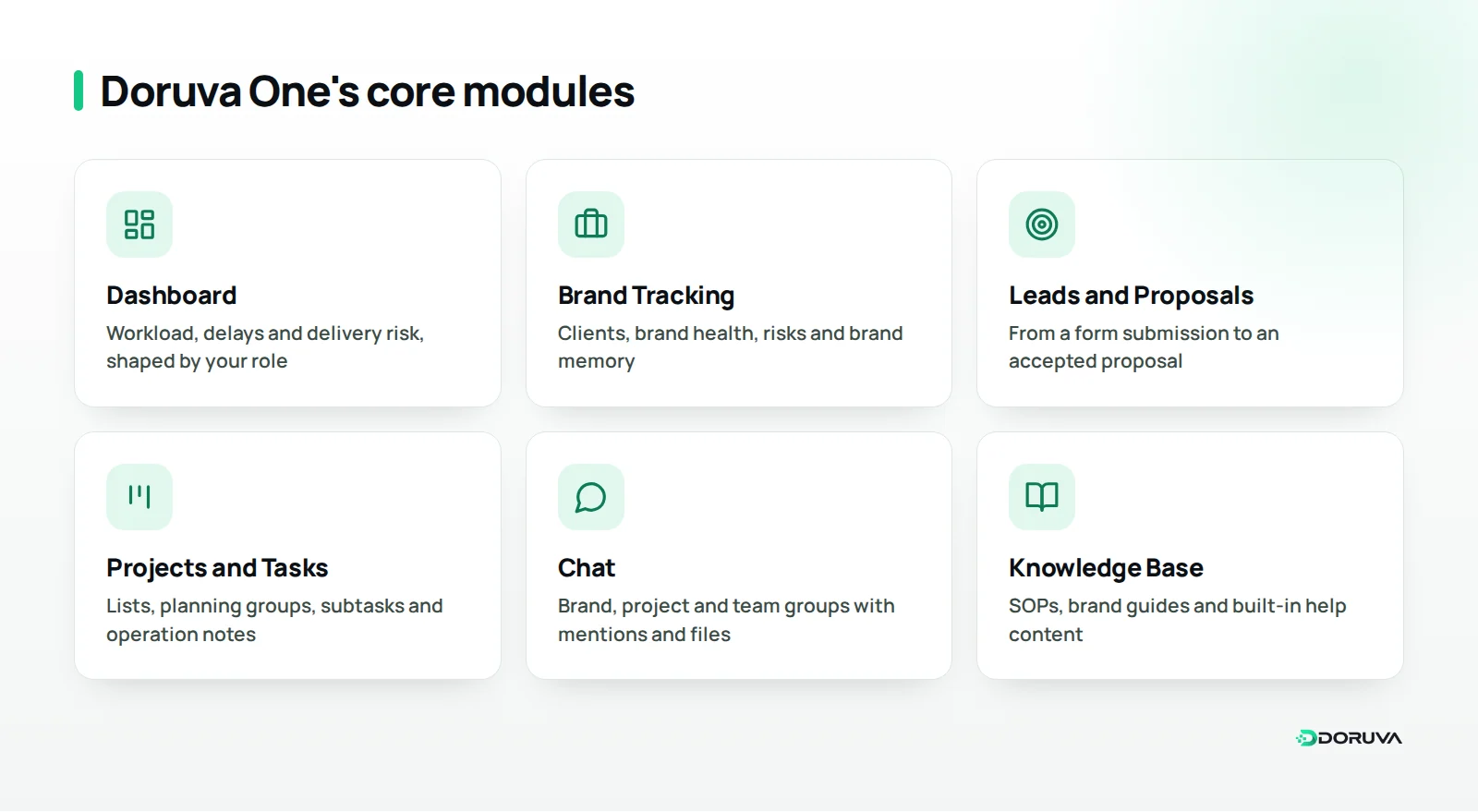
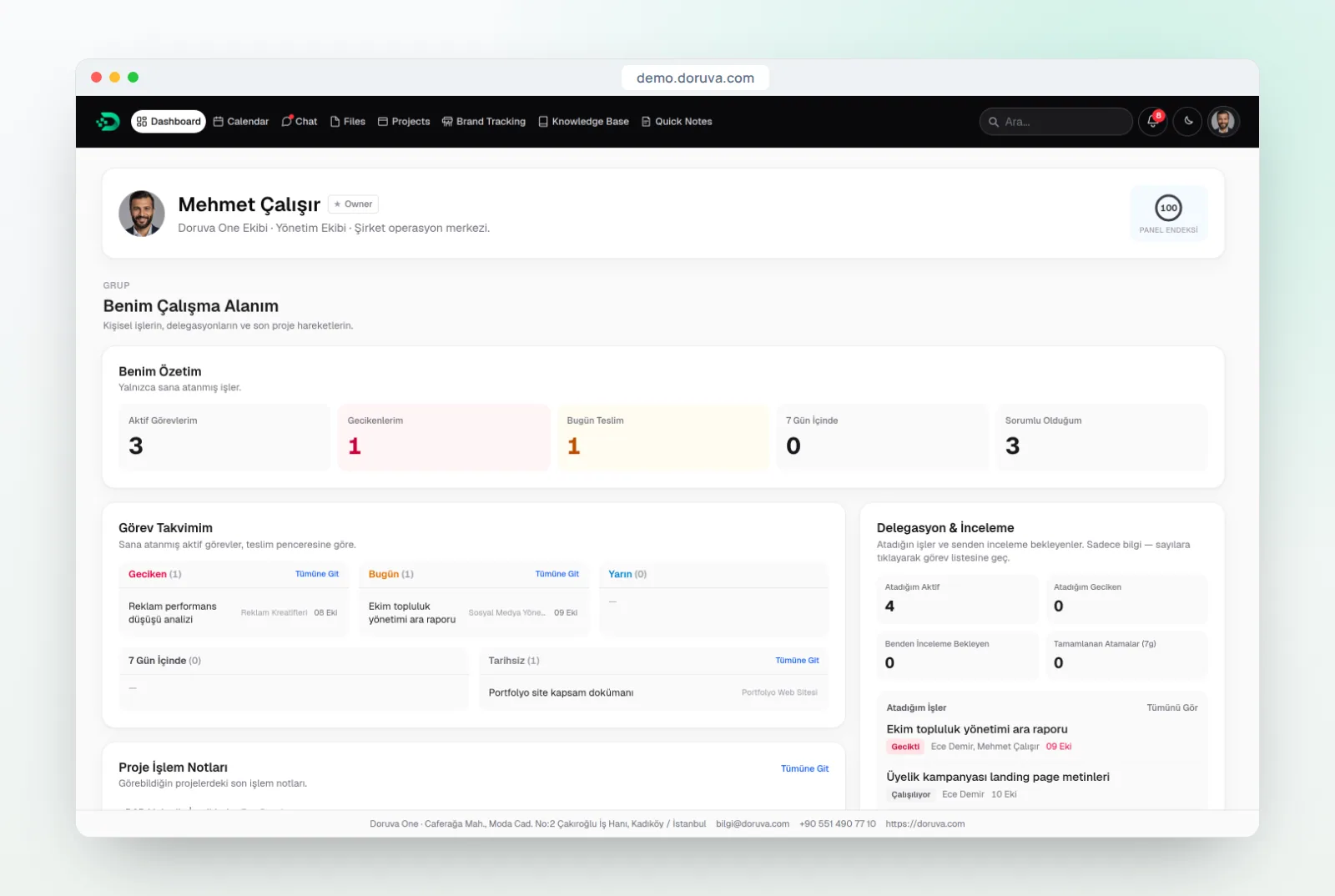
Dashboard
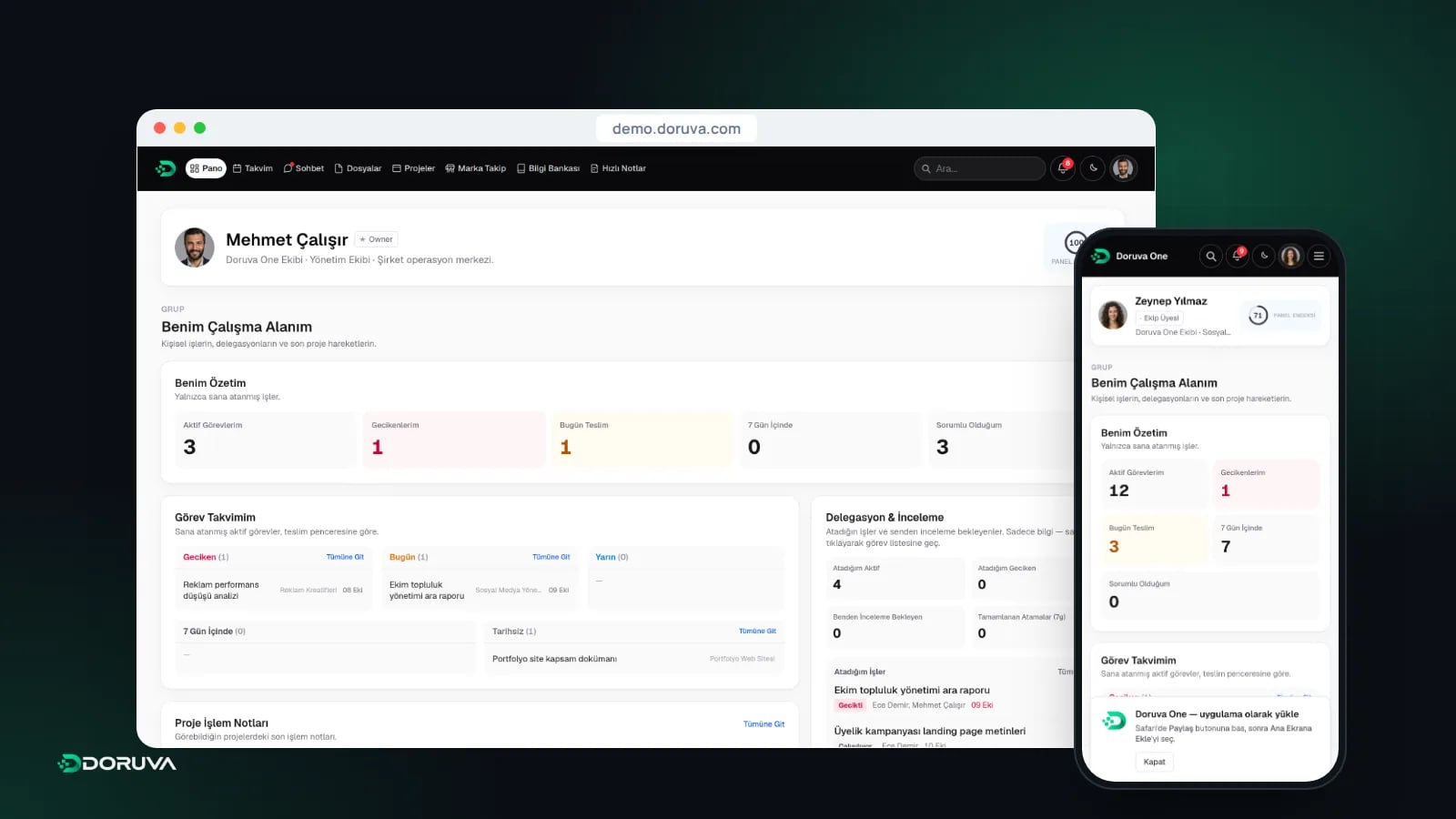
The Dashboard is the first screen you see after signing in, and its content depends on your role. Everyone gets a "My Workspace" summary, a personal timeline that groups work into Overdue, Today, Tomorrow, Within 7 Days and No Date, and the Panel Index, a usage score from 0 to 100. Managers and above also see Operations Status, workload distribution (Light, Balanced, Busy, Critical) and delivery risk.
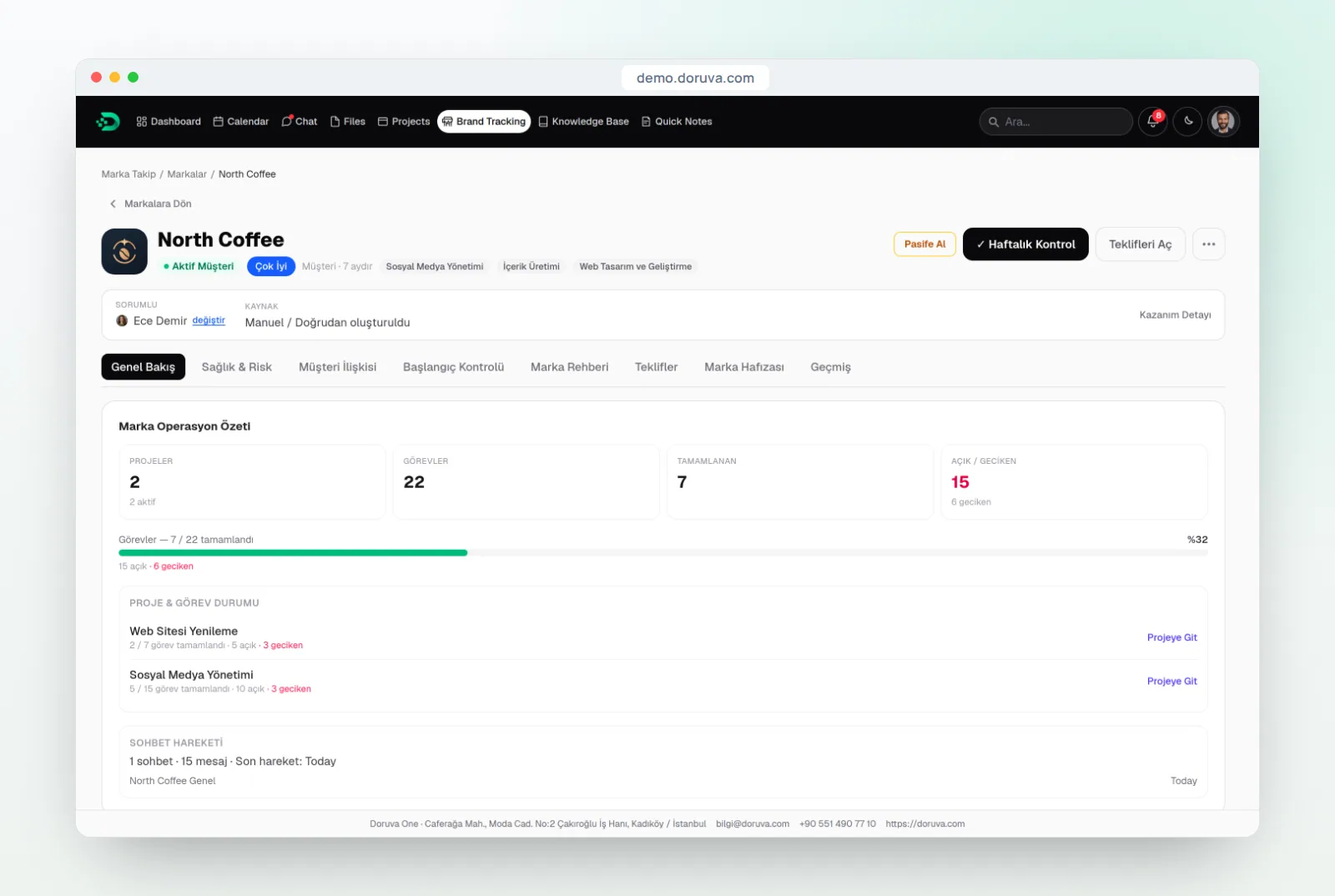
Brand Tracking
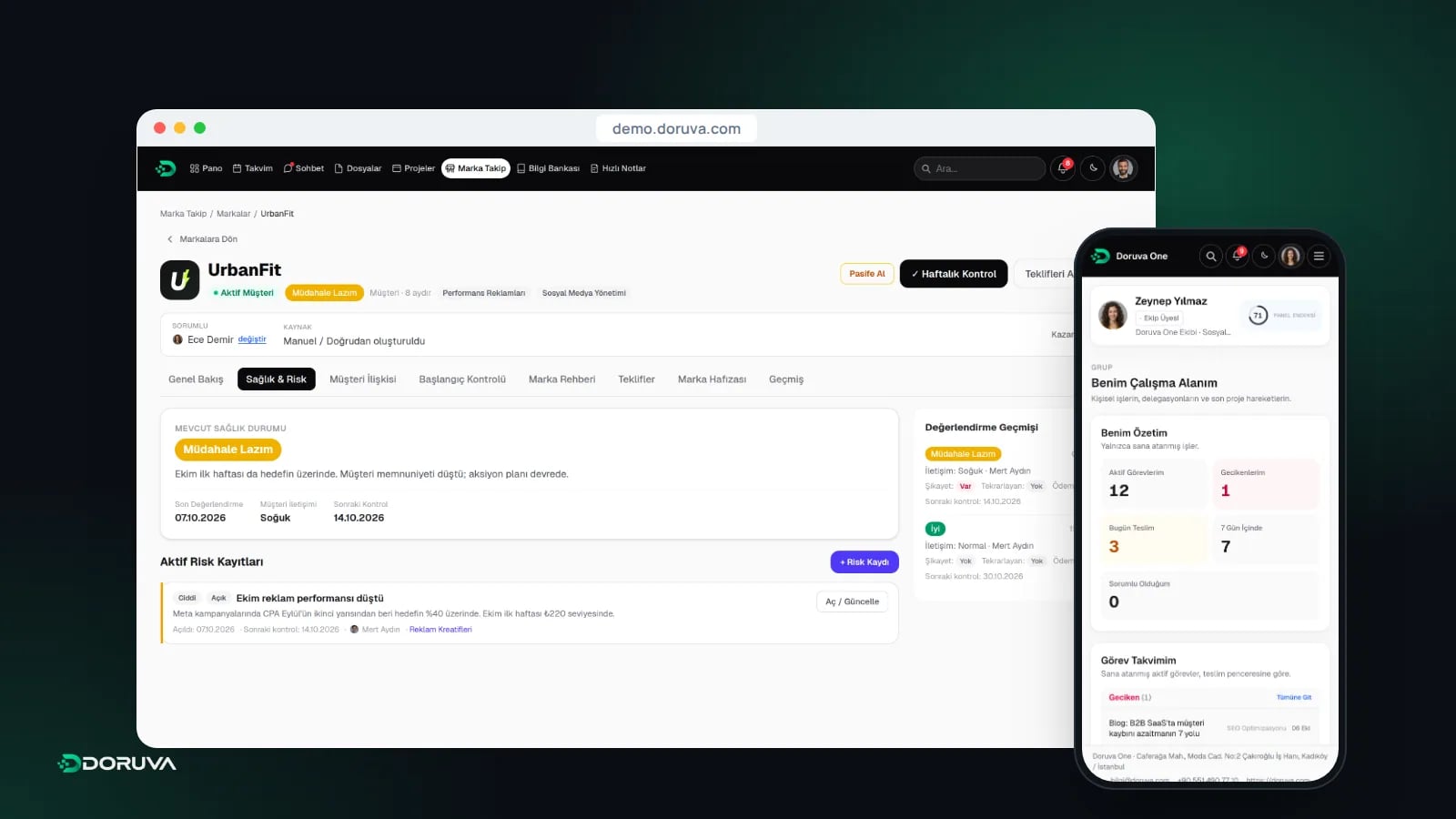
Brand Tracking is the home of your clients and prospects. It has views for Active Brands, Prospects, the Sales Pipeline stage board, Leads and Proposals. Each client brand has tabs for Overview, Health & Risk, Client Relationship, Onboarding Checklist, Brand Guide, Proposals, Brand Memory and History. Brand health runs from Very Good to Crisis, and open risks are tracked by level, status and resolution type.
Leads and proposals
The Leads view tracks new opportunities through New, Contacted, Qualified, Converted and Lost. Leads can be entered by hand or arrive automatically from a website form, a webhook, Zapier, Make or a Meta / Instagram Lead Ads connection. A qualified lead becomes a prospect, moves through stages from New Lead to Won, and once won is converted into an active client brand. Proposals are built from line items with service, quantity, price, discount and VAT; the items come from the Service Catalog, and each proposal has a printable / PDF view.
Projects, tasks and planning groups
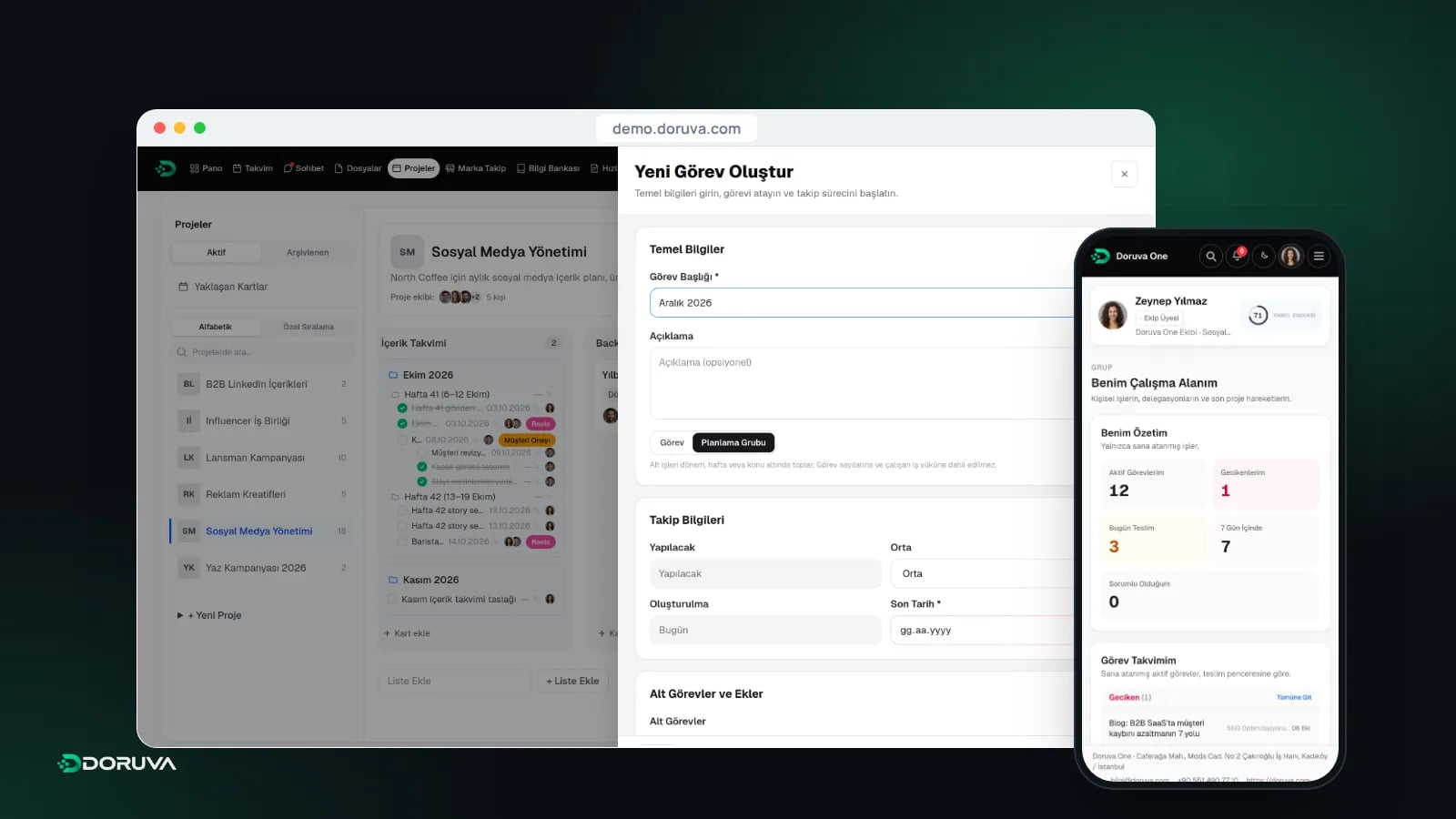
Projects run on boards made of lists; a new project starts with Backlog, To Do, In Progress, In Review and Done. A task can have several assignees, one responsible person, a priority, a due date and subtasks nested as deep as you need, with comments written as Operation Notes using @mentions. Planning Groups gather work under a month, week, topic or campaign phase and are never counted in task totals or workload. For example, you could split an SEO roadmap into Technical SEO, Content and Backlinks, then turn the items from a technical SEO checklist into tasks under the first group.
Chat, Knowledge Base and Files
Chat covers brand groups, project chats, team groups and one-to-one conversations. You can @mention people and use # to reference a project, task or planning group, and Owners and Admins can post Announcements to the whole team. The Knowledge Base gives SOPs and brand guides a structure of spaces and page trees. Files are organized by context rather than folders: each file stays with the brand, project, task or chat it belongs to.
Calendar, Reporting and Approval Center
The Calendar offers several views, including month, week, day and agenda, syncs with Google Calendar, and can create meetings with a Google Meet link once a Google account is connected. Reporting shows tasks, deliveries, teams and brands for the date range you choose, with CSV export. The Approval Center routes change and deletion requests from users without direct permission to a reviewer.
How do roles work, and who sees what?
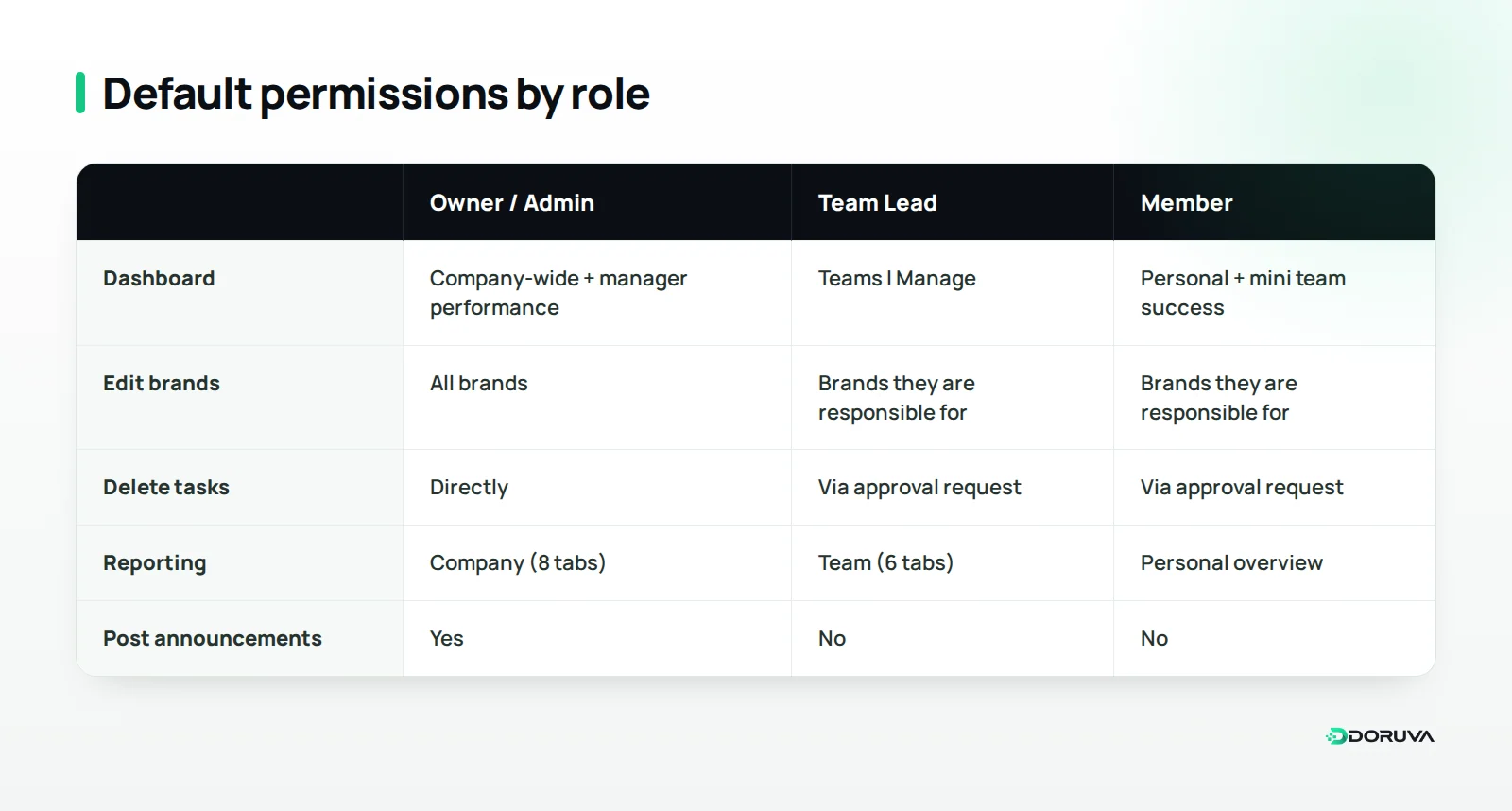
Doruva One has five roles: Owner, Admin, Manager, Team Lead and Member. Everyone uses the same panel, but each role sees a different Dashboard, different menu items and different permissions. This role-based authorization keeps members focused on their own work while leadership sees the whole company. (In the interface, role names currently appear in Turkish: Yönetici, Ekip Lideri and Ekip Üyesi for Manager, Team Lead and Member.)
| Role | Description in the product | Typical scope |
|---|---|---|
| Owner | Full access | Company-wide dashboard, all administration including License & Plan and System, final approvals |
| Admin | Organization management | Users and teams, proposals, Customization, Integrations, Backups, final approvals |
| Manager | Team and project management | Operations Status, creating brands, Service Catalog, company-wide reports |
| Team Lead | Team leadership | "Teams I Manage" view, the team's tasks, team reports, team calendar events |
| Member | Task and work tracking | Own tasks, projects they belong to, personal overview |
Here is how the rules play out in practice. When a Member wants to delete a task, it is not deleted on the spot. The request goes to the Approval Center, a manager reviews it, and an Owner or Admin gives final approval. Leads are visible only to Owners and Admins by default, and Proposals only ever to those two roles. Admins can also allow or block individual permissions for a specific user.
How do you set up Doruva One?
Doruva One is set up through a Setup Wizard in a handful of steps; in the wizard's own words, setup takes a few minutes. It runs once and closes when it is finished.
- Setup key: enter the single-use key the Doruva team sends you.
- Organization: name, industry, team size, time zone and language.
- Appearance: logo, display name, primary and secondary colors, with a live preview.
- Administrator and team: create the Owner account, add up to 10 team members and create your first team.
- First workspace: define a first brand and first project, or choose to skip for now.
- Summary: review each card and complete setup.
Nothing is saved until that final click. The success screen shows strong temporary passwords for your team members only once, so be ready to pass them on securely. Setup also adds built-in help content to the Knowledge Base. Note that users are created with a password by an administrator rather than invited by email.
A practical tip: before you open the wizard, decide on paper who is in your first team, who leads it, and which brand and project you will start with. Choosing your busiest client as the first brand, and their social media work as the first project, gets the team using the panel for real work from day one.
How do you tailor Doruva One to your organization?
Doruva One is personalized to run under your own brand. Logo and colors are set during setup; the sign-in screen's logo, colors and text, and the company details used on proposals, can be edited later under Administration → Customization.
The Integrations area manages your organization's Google connection, Lead Sources (Website, Webhook, Zapier, Make) and the Meta / Instagram Lead Ads connection. Backups are available to Owners and Admins. The interface comes in Turkish and English, and each user chooses their language and a light or dark theme in their profile. The English interface is partial for now: navigation, tasks, files, chat and the project board are in English, while screens such as the Dashboard and Brand Tracking still appear in Turkish.
Some modules depend on your plan. Lead management, for instance, is part of the more comprehensive plans, and opening a module your plan does not include shows a "not active in your plan" page. It is worth agreeing on the modules you really need during the setup conversation.
How does Doruva One work on mobile?
The Doruva One web panel is fully responsive across phones, tablets and desktops, so today you can use it in your phone's browser and add it to your home screen as an app. On smaller screens a menu button opens a full-screen menu, side panels in screens such as chat and files become drawers, and the task table turns into a card list.
- Android / Chrome: the panel shows an "install as an app" card; tap Install to add it to your home screen.
- iPhone / Safari: use the Share menu and choose "Add to Home Screen".
- Push notifications: turn them on under Profile → Notification Settings; on iPhone, add the panel to your home screen first.
Opened from the home screen, the panel looks and behaves like an app, with your organization's icon and name. Web apps installed from the browser like this are generally known as PWAs. There is no offline mode; the panel needs an internet connection.
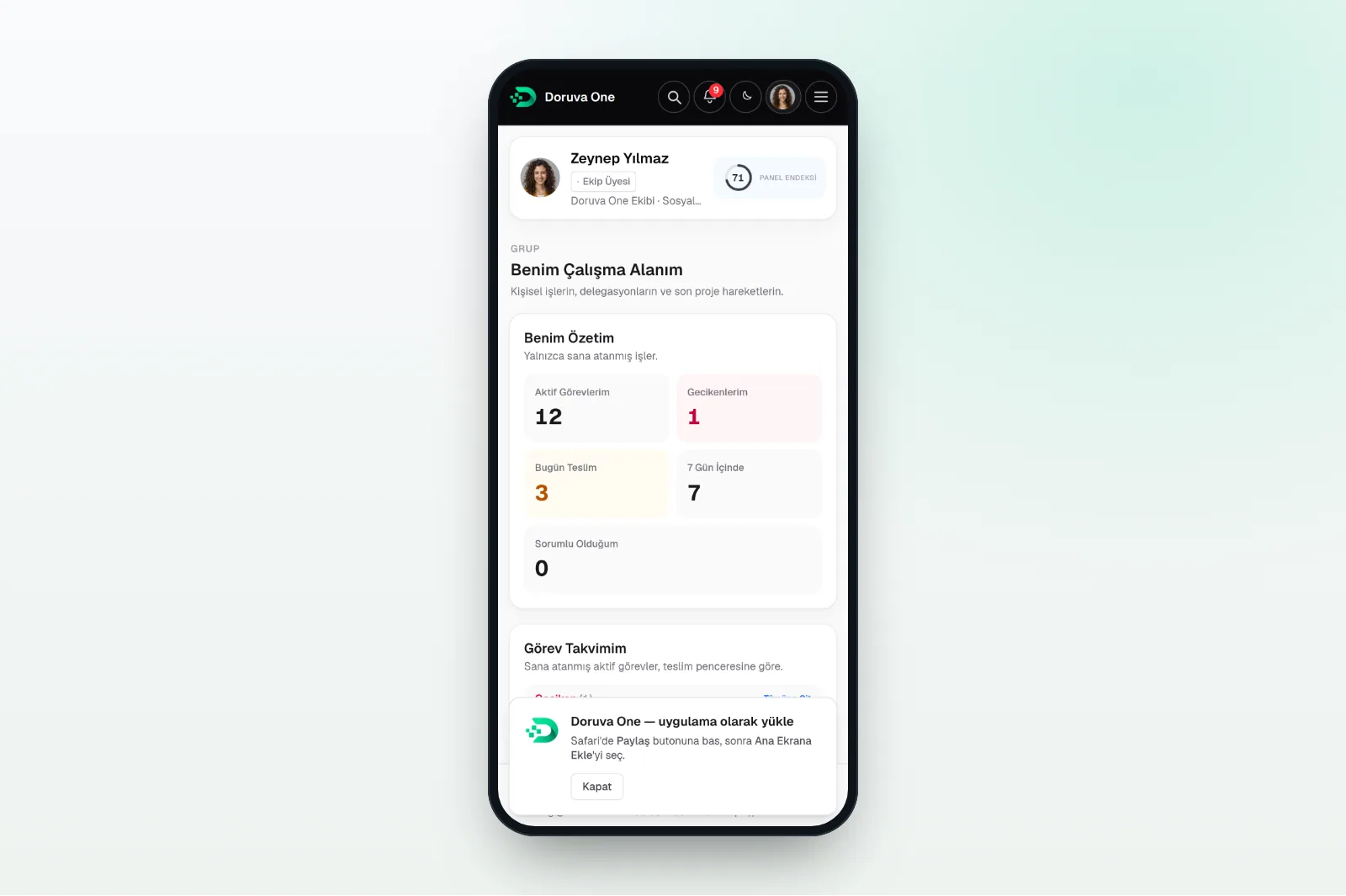
As for a native app: the Doruva One mobile app is coming very soon to the App Store and Google Play.
Summary: is Doruva One the right fit for your team?
Doruva One is built for project-based teams that want to see client relationships and team work in the same place. It is worth a closer look if several of these sound familiar:
- Client details, tasks and conversations are spread across different tools.
- Team leads only find out about workload and delays in meetings.
- Inbound requests and proposals are not followed up consistently.
- Process knowledge lives in the heads of a few experienced people.
- You want role-based visibility instead of everyone seeing everything.
You can explore the modules and use cases in detail on the Doruva One product page. To plan a setup that fits your team and see a live demo, get in touch with us about Doruva One.
Frequently Asked Questions
What kind of teams is Doruva One built for?
Digital agencies, creative studios, consultancies, software teams and project-based teams of any size. Setup offers 14 industries, but the brand-centered (client-centered) structure fits agencies and consultancies best.
Is there a Doruva One mobile app?
Today you can use Doruva One in your phone's browser and add it to your home screen as an app, including push notifications. The native Doruva One mobile app is coming very soon to the App Store and Google Play.
Can every team member see all client data and proposals?
No, visibility depends on the role. Members can view brands but only edit the ones they are responsible for; Leads are visible to Owners and Admins by default, and Proposals only to those two roles.
How does a Doruva One setup start?
The Doruva team sends you a single-use setup key. It opens the Setup Wizard, which walks through organization details, appearance, the administrator and team, a first workspace and a summary; nothing is saved until the final confirmation.
Can website form submissions flow into Doruva One automatically?
Yes. Under Administration → Integrations → Lead Sources you can connect a website, a webhook, Zapier or Make, and you can also connect Meta / Instagram Lead Ads. Lead management depends on your plan.