SEO
How to Add Schema Markup to WordPress (With and Without a Plugin)
There are three ways to add schema markup to WordPress: an SEO plugin's automatic graph and templates, JSON-LD added through the wp_head hook without a plugin, and custom JSON-LD for a single page. This guide covers each method step by step, the right types and how to test them.
By Mehmet ÇalışırPublished 14 min read
Contents
This guide is for business owners who run their own WordPress site, agencies building client sites, and developers wondering whether to leave schema to a plugin or write it by hand. We start with what structured data is and which types make sense for which kind of site, then walk through the three methods step by step, and finish with testing and troubleshooting. If you haven't set up the basics yet, start with our WordPress SEO settings guide; schema sits on top of that foundation.
What is schema markup, and why use JSON-LD?
Structured data means describing what a page is about in a standard vocabulary that search engines and other machines can read without guessing. That vocabulary is Schema.org. It expresses facts such as "this page is a product, this is its price and brand" or "this business is a dental clinic with this address and these opening hours" using type and property names. When people talk about "adding schema to WordPress", this is what they mean.
There are three formats for writing it: JSON-LD, Microdata and RDFa. Google supports all three but recommends JSON-LD because it is the easiest to maintain. Instead of being scattered through your HTML, JSON-LD lives in a single <script type="application/ld+json"> block, so it survives a theme change. Organisation details for a small coffee brand look like this:
<script type="application/ld+json"> { "@context": "https://schema.org", "@type": "Organization", "name": "Example Coffee", "url": "https://examplecoffee.com/", "logo": "https://examplecoffee.com/logo.png" } </script>
What schema does and doesn't guarantee
Schema makes a page eligible for a rich result: star ratings, prices, event dates or breadcrumbs shown alongside the search listing. Google decides whether to show them; correct markup is a prerequisite, not a promise. Google has not said that schema boosts rankings on its own either. Its real value is that it states the meaning of your page without ambiguity.
- What schema gives you: eligibility for rich results, clearer entities (brand, person, product, business) and an explicit content type.
- What it doesn't: guaranteed rich results, a direct ranking boost, or a fix for thin content.
- The rule to follow: every fact in your markup must match content visitors can see on the page.
Which schema types does your site need?
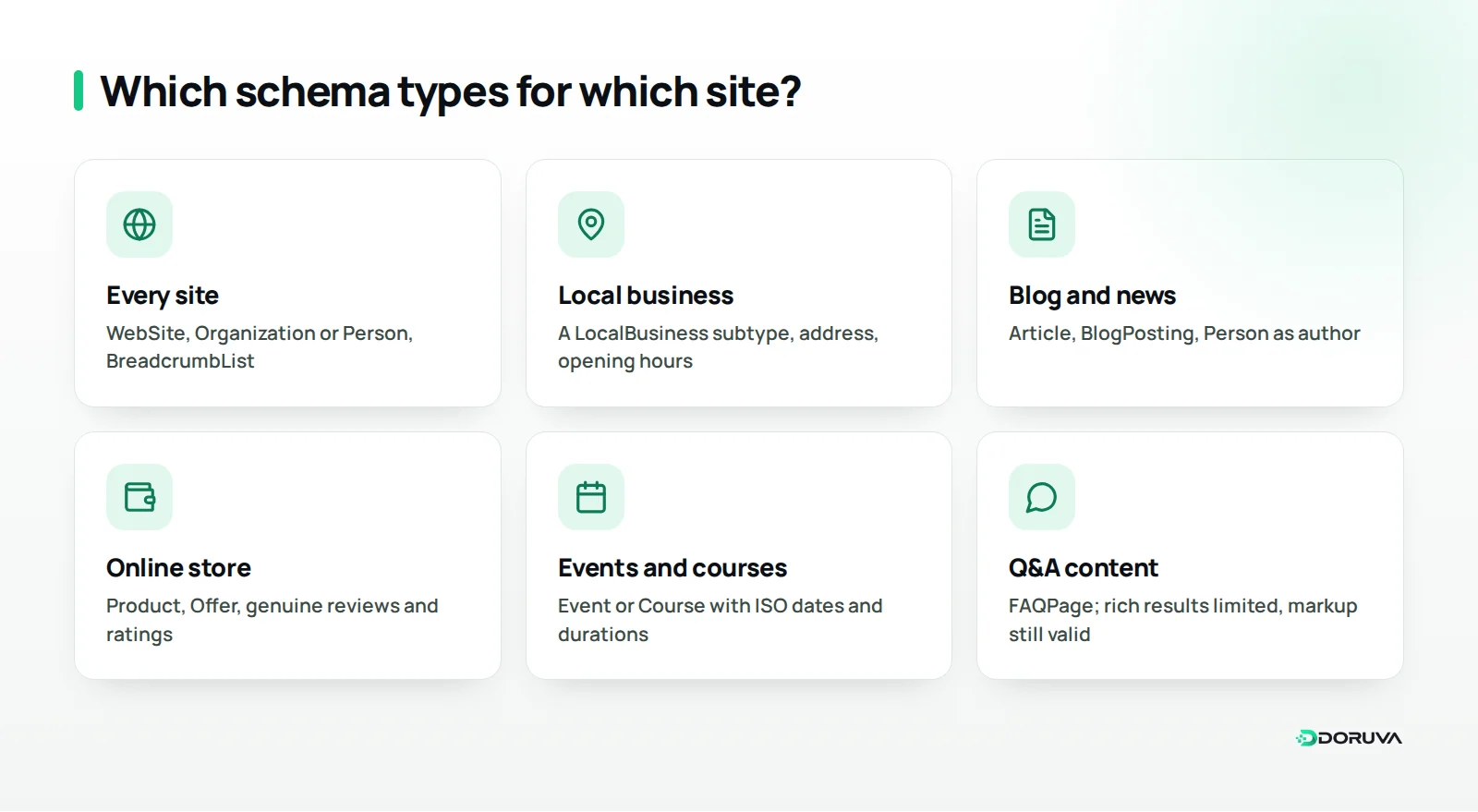
Every site shares a common core: WebSite, an Organization (or Person) that describes who is behind it, and a BreadcrumbList that describes the page's position. On top of that you add types that match your content, such as Article, Product or LocalBusiness. The test is simple: mark up what is actually on the page.
| Type of site | Core types | Added depending on content | Watch out for |
|---|---|---|---|
| Company website | Organization, WebSite, WebPage | Service, ContactPage, AboutPage | Logo, contact details and social profiles must be consistent |
| Local business (clinic, restaurant) | LocalBusiness and the right subtype | Opening hours, address, coordinates | Details must match your Google Business Profile exactly |
| Blog or news site | Article, BlogPosting or NewsArticle | Person (author), BreadcrumbList | Author and publish date should be visible on the page |
| Online store | Product, Offer | AggregateRating, Review, brand, GTIN/SKU | Price and availability must match the page |
| Events, courses, recipes | Event, Course, Recipe | Dates, location, duration | Dates and durations must use ISO 8601 format |
For local businesses, LocalBusiness markup and a Google Business Profile reinforce each other; we cover that in our post on local SEO and Google Business Profile. Structured data matters beyond Google, too: it helps AI assistants recognise your brand correctly, as we explain in how AI understands your brand.
Method 1: An SEO plugin's automatic schema plus templates
The quickest route is to let an SEO plugin handle schema. Plugins such as Yoast SEO, Rank Math and All in One SEO output WebSite, Organization, WebPage, BreadcrumbList and, for posts, Article markup as soon as they are configured. You enter your organisation name, logo and social profiles once, and the markup on every page is built from live content.
Automatic schema covers the core types. For products, services, events or FAQs, most plugins need extra settings, a dedicated block or a paid tier. We compare how the main plugins handle this in Yoast vs Rank Math vs free alternatives. Feature sets change from version to version, so check each plugin's current feature list before you decide.
Why templates matter
In a store with a hundred products, writing schema for each product by hand doesn't scale. With templates you define a type once, map its fields to variables (product name, price field, featured image) and set rules for where it runs. When a new product goes live, its markup is generated automatically.
- Install the plugin and fill in your organisation or person details completely.
- Check the default schema type for posts, pages and products.
- Create templates for repeating content such as products, services or events.
- Run a few sample pages through the Rich Results Test.
Doing it with Doruva SEO: schema templates, display conditions and validation
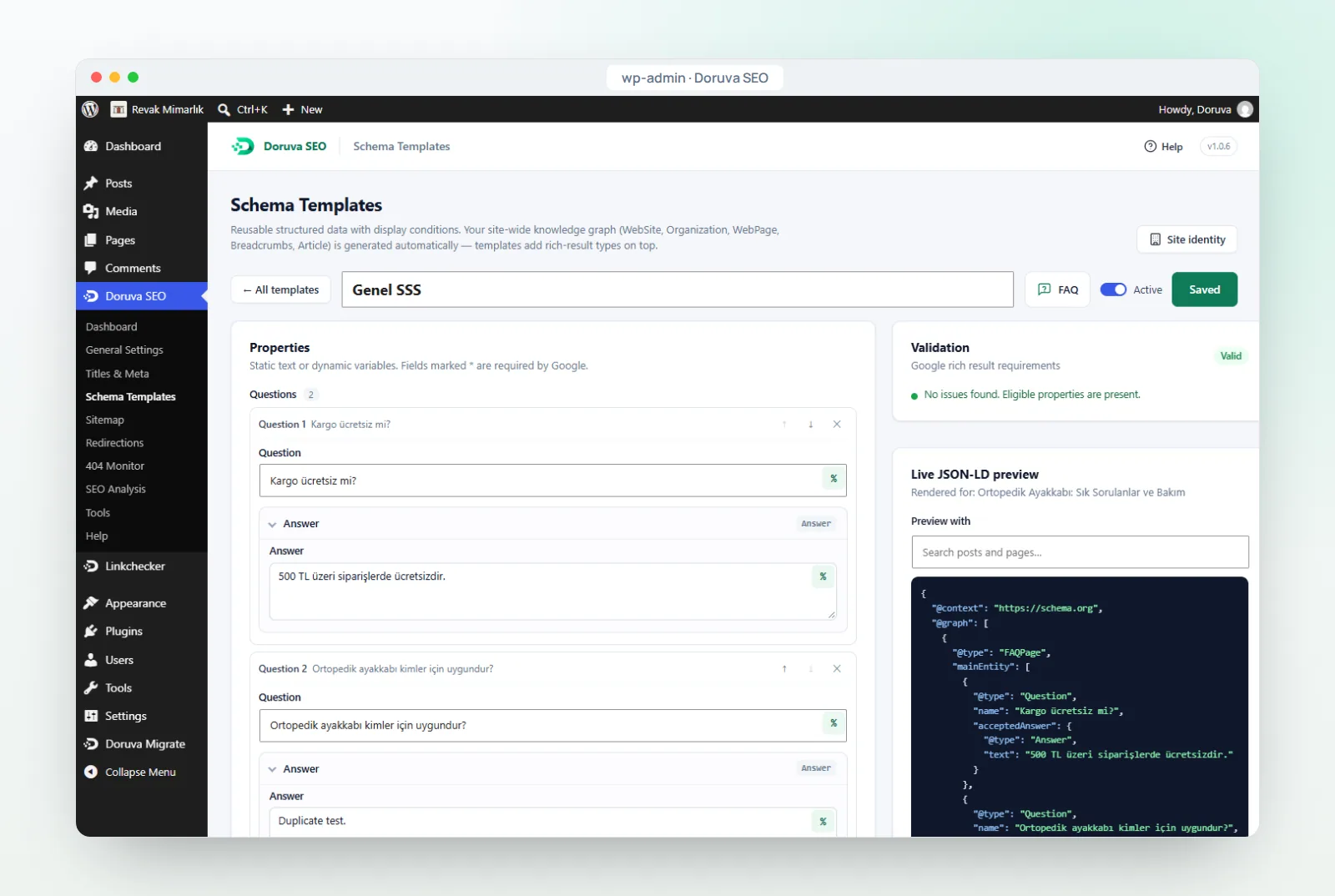
Doruva's free plugin Doruva SEO outputs one JSON-LD @graph per page whose pieces are linked by @id: WebSite, Organization / LocalBusiness / OnlineStore or Person, WebPage with the right subtype, BreadcrumbList, and Article / BlogPosting / NewsArticle with its author and publisher. Under Schema Templates, a visual builder lets you create Product, Service, LocalBusiness and 35+ subtypes, FAQ, How-to, Event, Course, Recipe, Job Posting and Custom JSON-LD templates, and every field takes fixed text or variables such as %title%, %featured_image% or %customfield(_price)%.
- Display conditions: include and exclude rules decide where a template runs: the whole site, post types, specific posts and terms, page templates, archives and the search page. One Product template with the condition "All singular items of a post type → Products" covers every product.
- Per-post customisation: on each post you see which templates apply, switch any of them off, edit fields for that post only, or add markup that belongs to that post alone.
- Validation: the builder checks required and recommended fields per type against Google's rich result rules, validates ISO date, duration and price formats, and shows a live JSON-LD preview. Google's Rich Results Test and the Schema.org validator open in a new tab with one click.
- No duplicate FAQ markup: all FAQ blocks and FAQ templates on a page are merged into a single FAQPage.
The plugin is completely free, with no Pro version, and is coming soon to WordPress.org; you can follow its status, and our other free plugin, on our WordPress plugins page. Features can change between versions, so check the current feature list on the product page before you install.
Method 2: Adding JSON-LD without a plugin, via your theme or a code snippet
To add schema markup to WordPress without a plugin, you print a JSON-LD block into the page's <head> using WordPress's wp_head hook. This suits developers who want full control, small sites that only need a few fixed facts (organisation, local business), and anyone filling a gap their SEO plugin doesn't cover.
Step by step: functions.php or a snippet
- Back up first: take a copy of the site and database before touching theme files; one missing bracket can produce a white screen.
- Pick the right place: a parent theme's
functions.phpis overwritten on update, so add the code to a child theme or a code snippets plugin. - Add the code: the example below prints Dentist (a LocalBusiness subtype) markup for a dental clinic on the home page only.
- Clear your cache and search the page source for
application/ld+json. - Test it: run the home page URL through the Rich Results Test and the Schema.org validator.
add_action( 'wp_head', function () { if ( is_front_page() ) { $schema = array( '@context' => 'https://schema.org', '@type' => 'Dentist', '@id' => home_url( '/#organization' ), 'name' => 'Example Dental Clinic', 'url' => home_url( '/' ), 'telephone' => '+44 20 0000 0000' ); echo '<script type="application/ld+json">' . wp_json_encode( $schema ) . '</script>'; } } );
Using wp_json_encode matters: it escapes quotes and special characters properly and avoids the comma and quote mistakes that creep into hand-written JSON. The @id value gives the organisation a stable identifier that other pieces of markup on the site can reference.
Limits of this method
Hard-coded schema stays the same until you change it. When your phone number, address or opening hours change, the code has to change too. And if an SEO plugin on the same site also outputs schema, you can end up with two separate Organization blocks. Either switch off that part of the plugin's output or add your piece to the plugin's graph through a filter; most major SEO plugins provide developer hooks for exactly this.
Method 3: Custom JSON-LD for a single page
Some markup belongs to one page only: a conference's Event details, a campaign page's product bundle, or a doctor's profile page. For these, adding schema to that page alone is cleaner than writing site-wide code.
Page-specific schema with a custom field
The developer-friendly approach is to add a custom field to the page, paste the JSON-LD there, and print it in wp_head only when the field is filled in. For security, never echo the field as it is: check that it is valid JSON with json_decode, then re-encode it with wp_json_encode. That way broken or malicious content never reaches the page raw.
The quick fix: a Custom HTML block
Pasting a <script type="application/ld+json"> block into the block editor's Custom HTML block also works, because Google reads JSON-LD in the page body too. It is fragile, though: depending on your user role and site settings WordPress may strip script tags on save, the block can be deleted by accident, and over time nobody remembers which pages carry markup. For anything permanent, prefer a custom field or a plugin with templates.
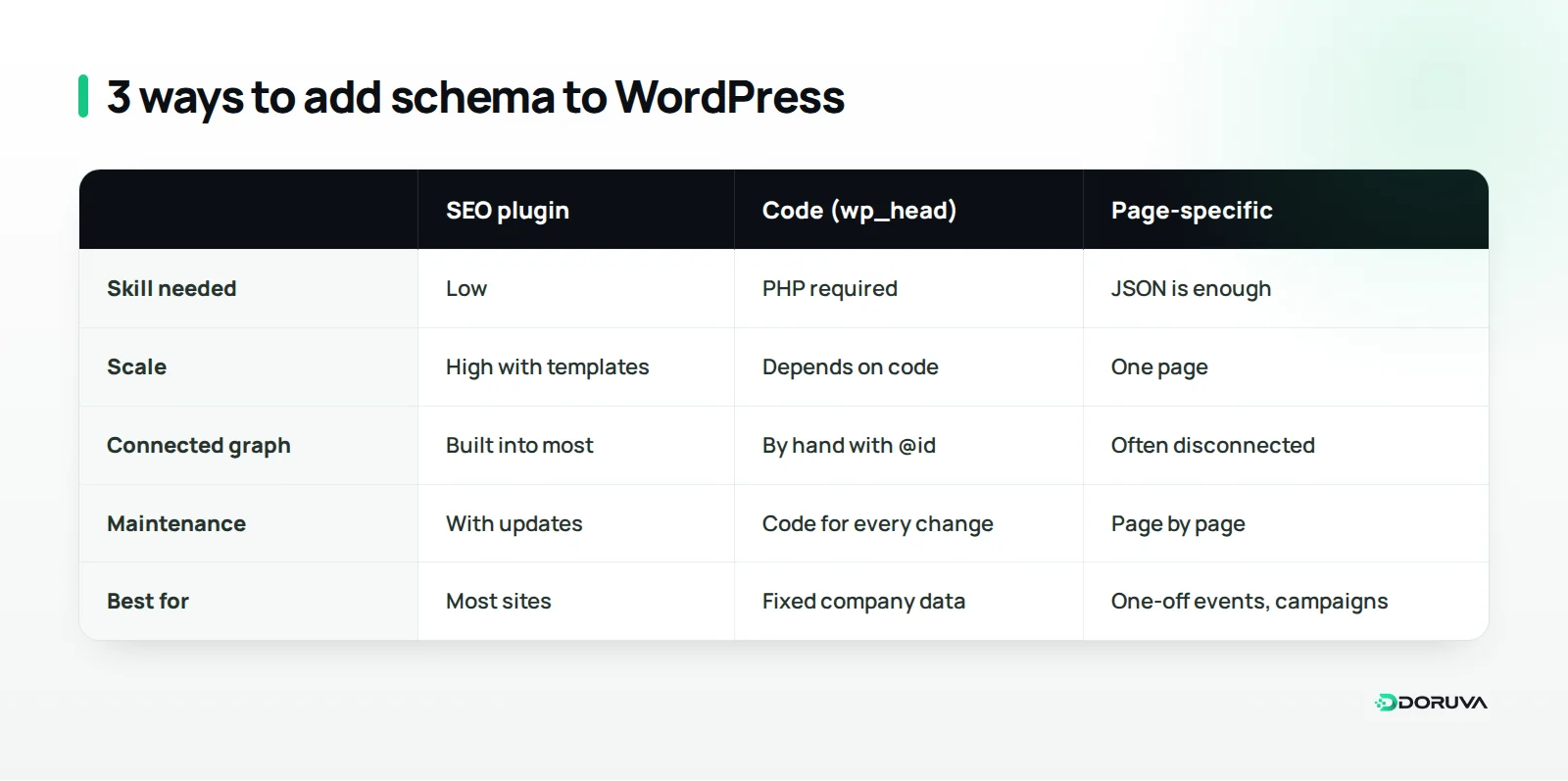
| Criterion | SEO plugin and templates | Code (wp_head) | Page-specific JSON-LD |
|---|---|---|---|
| Technical skill needed | Low | Medium to high (PHP) | Medium (JSON) |
| Scalability | High; templates apply to new content | Depends on how the code is scoped | Low; one page at a time |
| Connected graph | Built in with most plugins | Built by hand with @id | Often left disconnected |
| Maintenance | Comes with plugin updates | Code change for every update | Tracked page by page |
| Best for | Most WordPress sites | Fixed organisation data, special needs | One-off events and campaign pages |
A connected @graph or disconnected schema blocks?
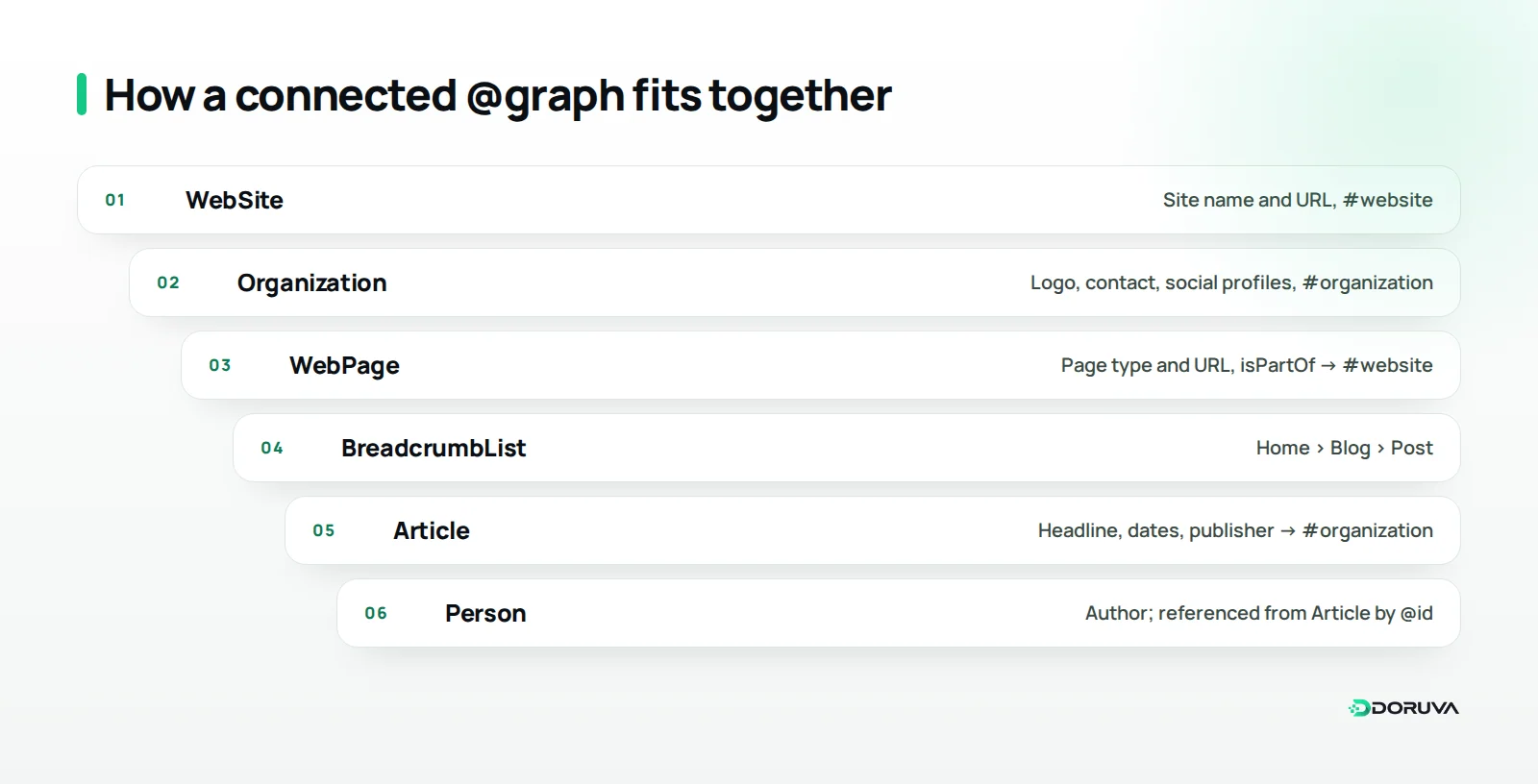
A connected @graph means all the schema pieces on a page live in one JSON-LD block and point to each other through @id references. The Article piece says "my author is this Person, my publisher is this Organization, I sit on this WebPage"; each piece is defined once and the others refer to it.
With disconnected blocks, the theme prints one Organization, a plugin prints another and your hand-written code adds a third, none aware of the others. A search engine then has to guess whether they describe the same company. A single graph removes that ambiguity and is easier to maintain: change the logo in one place and every page follows.
- Give every entity one stable
@idon your site (for examplehttps://examplecoffee.com/#organization). - Reference an entity with
{"@id": "..."}instead of defining it a second time. - When you add pieces by hand, reuse the
@idvalues your plugin already uses.
How do you test your schema markup?
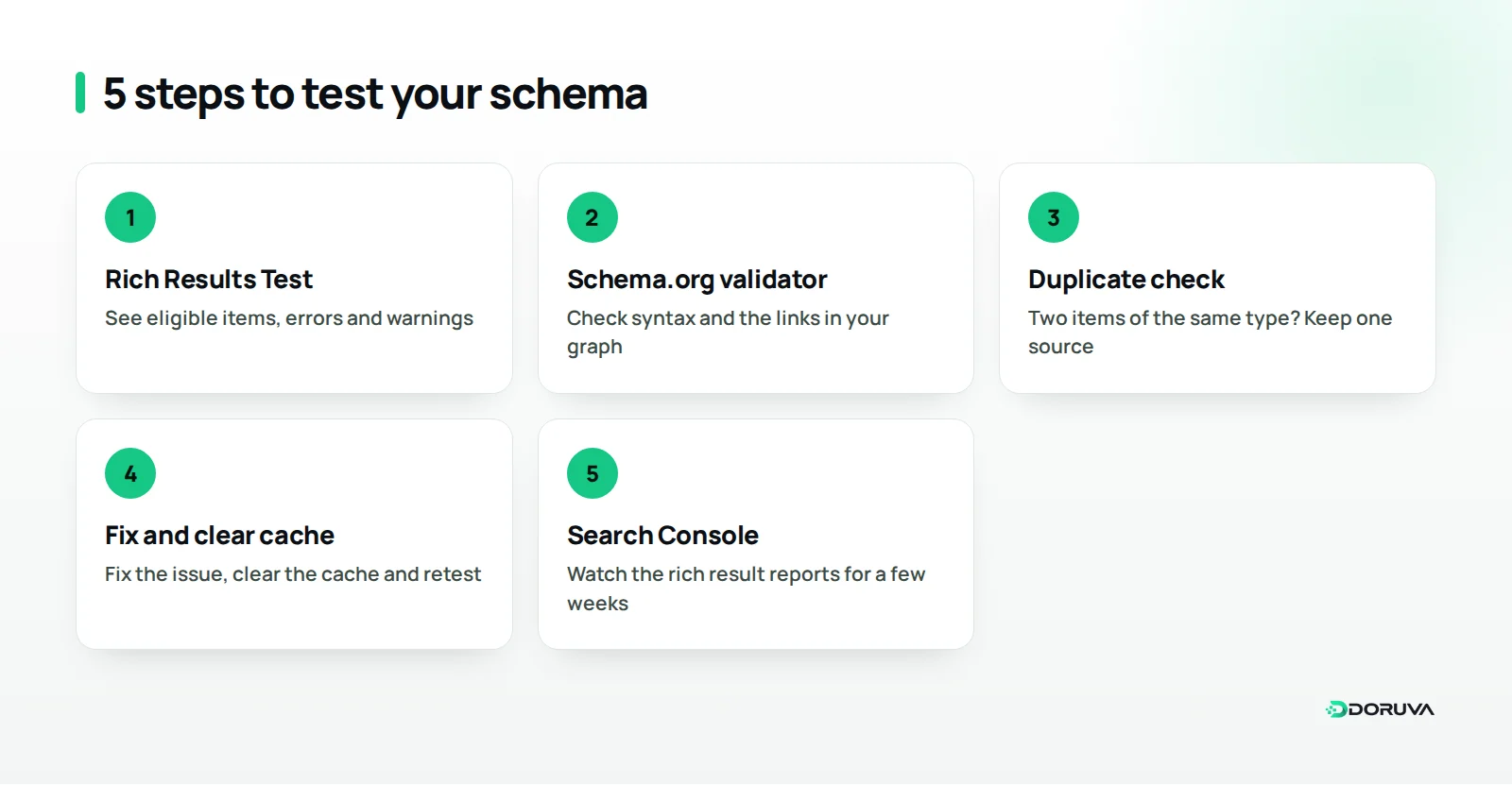
Test published markup with two tools. Google's Rich Results Test shows which rich results a page is eligible for and which required fields are missing; the Schema.org validator checks the syntax and structure of all markup, including types Google doesn't use. One answers "what can Google do with this page?", the other "is the markup written correctly?".
- Enter the page URL in the Rich Results Test and note the detected items, errors and warnings.
- Open the same URL in the Schema.org validator and check that all pieces sit in one connected graph.
- Fix the errors, clear your cache and test again.
- Watch the relevant rich result reports in Search Console over the following weeks; site-wide problems show up there.
Knowing the difference between errors and warnings saves time. An error means a required field is missing or invalid and the page isn't eligible for that rich result. A warning means a recommended field is missing; the page is still eligible but offers less information.
The 2023 change to FAQ and HowTo rich results
In August 2023 Google announced changes to HowTo and FAQ rich results. FAQ rich results are now shown only for well-known, authoritative government and health websites, and HowTo rich results are no longer shown. FAQPage markup and HowTo markup are still valid Schema.org types and don't cause errors, so there is no need to remove them; just don't expect expandable Q&As in search results on most sites. Rules like these change over time, so check Google's official documentation for the current position.
Common mistakes: duplicate schema and more
The most common mistake is two sources outputting schema on the same page. The theme prints its own Article markup, the SEO plugin prints its graph, an e-commerce plugin such as WooCommerce adds product markup, and your own code adds an Organization block. The result is conflicting prices, two different authors or three different logos.
| Symptom | Likely cause | Fix |
|---|---|---|
| Two Organization or two Article items in the test | Theme and SEO plugin both output schema | Turn off the theme's markup and keep one source |
| Two different prices in Product markup | Store plugin and SEO plugin each output Product | Disable one or enable their integration |
| No markup on the page at all | Cache serves an old version, or the code targets the wrong page | Clear the cache and check the condition |
| "Invalid date" error | Date not in ISO 8601 format | Use the 2026-11-24T15:00:00+03:00 format |
| Review and rating warnings | Ratings marked up that aren't shown on the page | Mark up only genuine reviews visible on the page |
- Running two SEO plugins at once: you get duplicate titles, canonicals and schema; when switching, import your data and then deactivate the old plugin.
- Marking up invisible content: adding FAQs or reviews to the markup that aren't on the page goes against Google's guidelines.
- Stamping the same schema on every page: Product or LocalBusiness on every URL muddies the meaning; markup should describe each page's own subject.
- Publishing without testing: a single stray comma can make a whole JSON-LD block unreadable.
- Skipping checks after updates: retest a few pages after any theme or plugin update.
If you want to review schema alongside the rest of your site's technical health, the structured data items in our technical SEO checklist give you a solid audit framework.
Summary and next steps
The healthiest way to add schema markup to WordPress is to generate one connected graph from a single source. For most sites that source is an SEO plugin with templates; use wp_head code for fixed facts the plugin doesn't cover, and page-specific JSON-LD for one-off pages. Whatever the method, the markup must match what the page visibly shows, must not be output twice, and should be retested after every change.
List the schema types your kind of site needs, choose one source, then test. Done in that order, duplicate schema rarely becomes a problem at all.
For a quick look at where your site stands, run it through our free SEO checker. If you'd like help with your schema strategy, a technical SEO audit or a template setup for a large catalogue, have a look at our SEO services and tell us about your project.
Frequently Asked Questions
Do I need a plugin to add schema to WordPress?
No. You can add a JSON-LD block through the wp_head hook in a child theme's functions.php or a code snippets plugin. If you manage many pages and types, though, an SEO plugin with templates is far easier to maintain.
Is it a problem to put JSON-LD in the body instead of the head?
Google can read JSON-LD in either the head or the body of a page. Keeping site-wide markup in the head and generating it from one source is still the tidier option for maintenance.
Is FAQ schema still worth adding?
FAQPage remains a valid Schema.org type, but since 2023 Google shows FAQ rich results only for well-known government and health sites. The markup still describes your content clearly; just set your rich result expectations accordingly.
How long until rich results appear after adding schema?
There is no fixed timeline. Google evaluates the markup after recrawling the page and decides for itself whether to show a rich result; correct markup only makes the page eligible.
What should I do if my theme also outputs schema?
If the Rich Results Test shows two items of the same type, keep a single source. Turning off the theme's schema output, or disabling that type in your SEO plugin, is the cleanest fix.