Web Design
WordPress Backup and Restore: 3 Methods, With and Without a Plugin
A WordPress backup is a regular copy of your database and wp-content folder, kept safely off the server. This guide compares the hosting panel, plugin and manual methods and shows how to restore a backup even when the dashboard won't load.
By Mehmet ÇalışırPublished 12 min read
Contents
This guide is for businesses that run their own WordPress site, agencies that maintain client sites, and anyone who has a backup but isn't sure it would actually save them. We cover what to back up, the three methods with and without a plugin, where and how often to keep backups, and, most importantly, how to restore one even when you can't get into the dashboard.
What is a WordPress backup, and what should it include?
A backup is a copy of a system's data kept somewhere separate, so you can go back to it if the original is lost or damaged. A complete WordPress backup has two main parts: the database, which holds your content and settings, and the wp-content folder, which holds the files unique to your site.
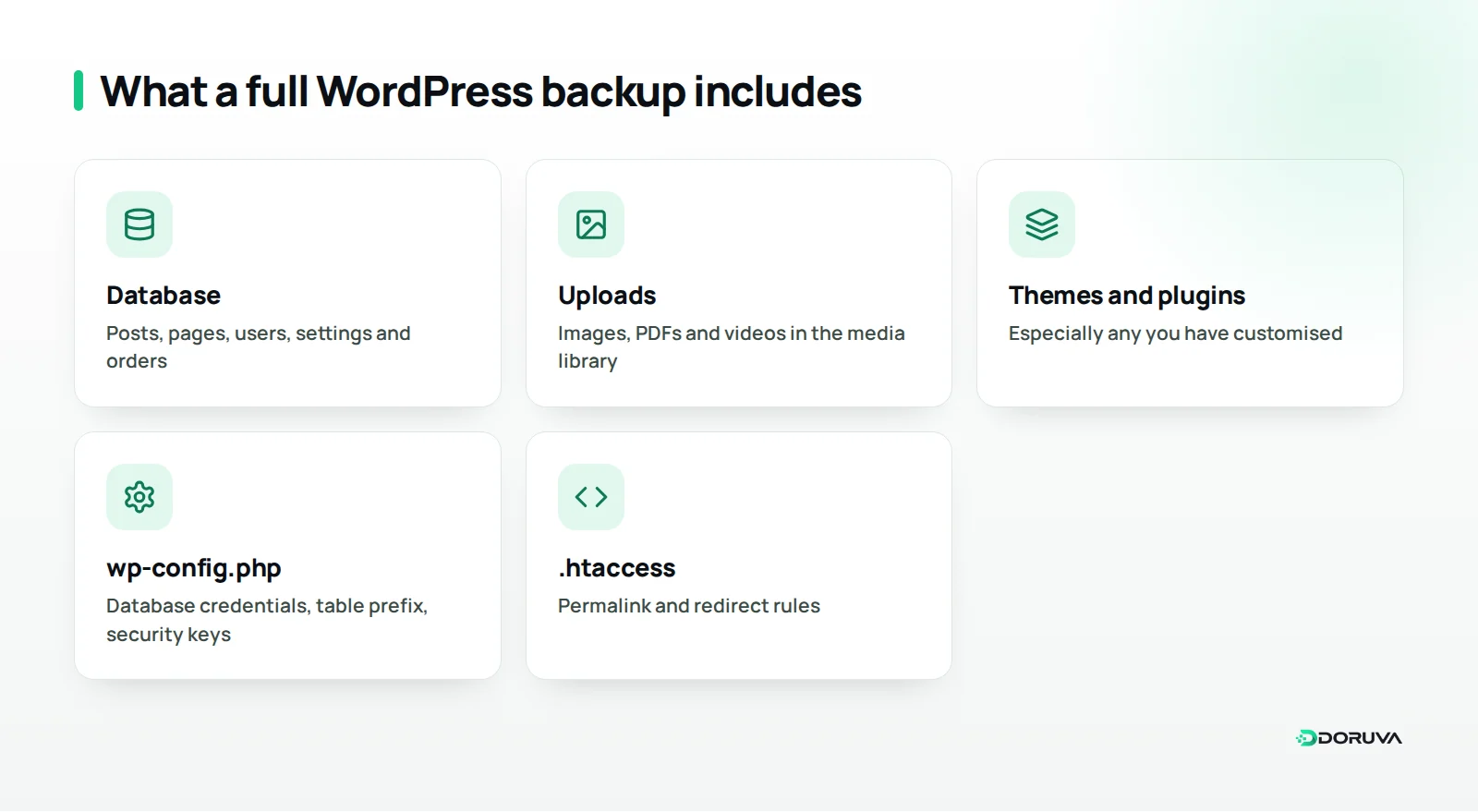
A complete WordPress backup should include:
- The database: posts, pages, menus, users, comments, plugin and theme settings, and orders if you run a store.
- wp-content/uploads: every image, PDF and video in the media library. Usually the largest part of the backup.
- wp-content/themes and plugins: especially any you've customised. Including the ones you could re-download still makes a restore faster.
- wp-config.php and .htaccess: database credentials, the table prefix, security keys and redirect rules.
You don't strictly need to back up the WordPress core files (the wp-admin and wp-includes folders); you can always download them again from the official package. A single full archive does make restoring simpler, though.
Why back up the database and files at different frequencies?
The two parts change at different speeds. On a dental clinic's site, the database changes only when a new blog post goes up; on an online store, it changes with every order. Files usually change when you upload new images or update themes and plugins. Busy sites therefore back up the database more often than the files, which saves both disk space and time.
Method 1: How do you back up WordPress from your hosting panel (cPanel)?
A hosting panel backup uses your provider's own tool to copy the files and databases in your account, with no plugin to install. On cPanel hosts, the Backup and Backup Wizard tools in the Files section offer two options:
- Full backup: an archive of the entire hosting account, including the home directory, databases, email accounts and settings.
- Partial backup: just the home directory, or just a specific MySQL database. For WordPress this is usually the most practical choice.
Many hosts also take automatic daily backups and offer a restore tool in the panel. Before you rely on them, ask three questions: how many days back do they go, are they stored on the same server or in the same data centre as your site, and can you restore them yourself or do you need to open a support ticket? With many providers, restoring a full account backup means contacting support.
Pros and cons of hosting backups
- Pro: nothing to install, and they're independent of the site itself; the panel still works when WordPress doesn't.
- Con: frequency and retention are up to the provider, and if your account closes or the server fails, the backups may become unreachable too.
How do you restore a partial backup in cPanel?
cPanel's Backup page has separate restore fields for partial backups: you can choose and upload a home directory backup or a MySQL database backup there. Because these fields work through the browser, large archives can take a long time to upload. In that case, restoring the files over SFTP and the database with phpMyAdmin or the command line is more predictable. Remember that a restore overwrites the current files, so take a copy of the site as it is first.
Method 2: How do you back up WordPress with a plugin?
A backup plugin brings backups into the WordPress dashboard: it creates archives on demand or on a schedule, lists them, and usually restores them from the dashboard as well. UpdraftPlus, WPvivid, Duplicator and All-in-One WP Migration are widely used for this, but what their free versions include varies, and it can change between versions.
What to look for in a free backup plugin
- Scheduling: does the free version run automatic backups, or do you have to start each one by hand?
- Off-site storage: can it send backups to cloud storage, or does it keep them only on the server?
- Retention: can it keep the last N backups and delete older ones automatically?
- Restore: does it offer a way to restore when wp-admin won't load?
- Security: is the backup folder protected from direct access, and can archives be encrypted?
- Server limits: does it time out or hit upload limits on large sites?
Most plugin backups are stored on the same server as the site by default. That's fine for rolling back a bad update, but useless if the server fails or the account is closed. Whichever plugin you use, regularly copy your backups off the server.
Method 3: How do you back up WordPress manually, without a plugin?
A manual backup means downloading the files over SFTP or a file manager and the database with phpMyAdmin or the command line. It's free, it doesn't depend on any plugin, and you know exactly what's in it. It's also the first half of the manual steps in our guide to migrating WordPress to a new host.
Back up the files
Use an SFTP client to download the wp-content folder and wp-config.php to your computer. In cPanel's File Manager, compressing the folder into a single zip first speeds up the download; just remember to delete that zip from the server afterwards. With SSH access, one command creates a compressed archive:
tar -czf wp-content-backup.tar.gz wp-content wp-config.php
Back up the database
In phpMyAdmin, select the site's database and download it as SQL from the Export tab. If WP-CLI is installed, this command, run in the site's folder, reads the database details from wp-config.php and creates a full dump:
wp db export backup-2026-11-22.sql
The command's options are listed in the WP-CLI documentation. Hook these commands up to a server cron job and the manual method becomes automatic too; just make sure the files are written outside the web root.
The three methods compared
| Criterion | Hosting panel | Backup plugin | Manual (SFTP, phpMyAdmin, WP-CLI) |
|---|---|---|---|
| Setup and skill | Nothing to install, easy | Install a plugin, easy | Needs technical know-how |
| Automatic backups | Depends on the provider | Available in most plugins | Possible with cron |
| If WordPress crashes | Panel keeps working | Depends on the plugin | Unaffected |
| Off-site copy | You download it separately | Cloud support in some plugins | Already on your computer |
| Restore | From the panel or via support | From the dashboard, a few clicks | Step by step, by hand |
| Best for | An extra safety layer | Regular, day-to-day backups | Before updates, full control |
In practice, the most robust setup combines them: a plugin takes the daily backups, the host's backups act as a second safety net, and you download a manual copy before any big change.
Where and how often should you keep backups?
A backup only helps if it sits somewhere the problem that hit your site can't reach. Where you keep it matters as much as how often you take it.
The 3-2-1 rule
The 3-2-1 rule says to keep at least three copies of your data, on at least two different types of storage, with at least one in a different location. For WordPress that might look like this:
- The live site plus the latest backup on the server (copies one and two).
- A copy downloaded to your computer, a company NAS or an external drive (a different medium).
- A copy in cloud storage or with a different provider (a different location).
Schedule and retention
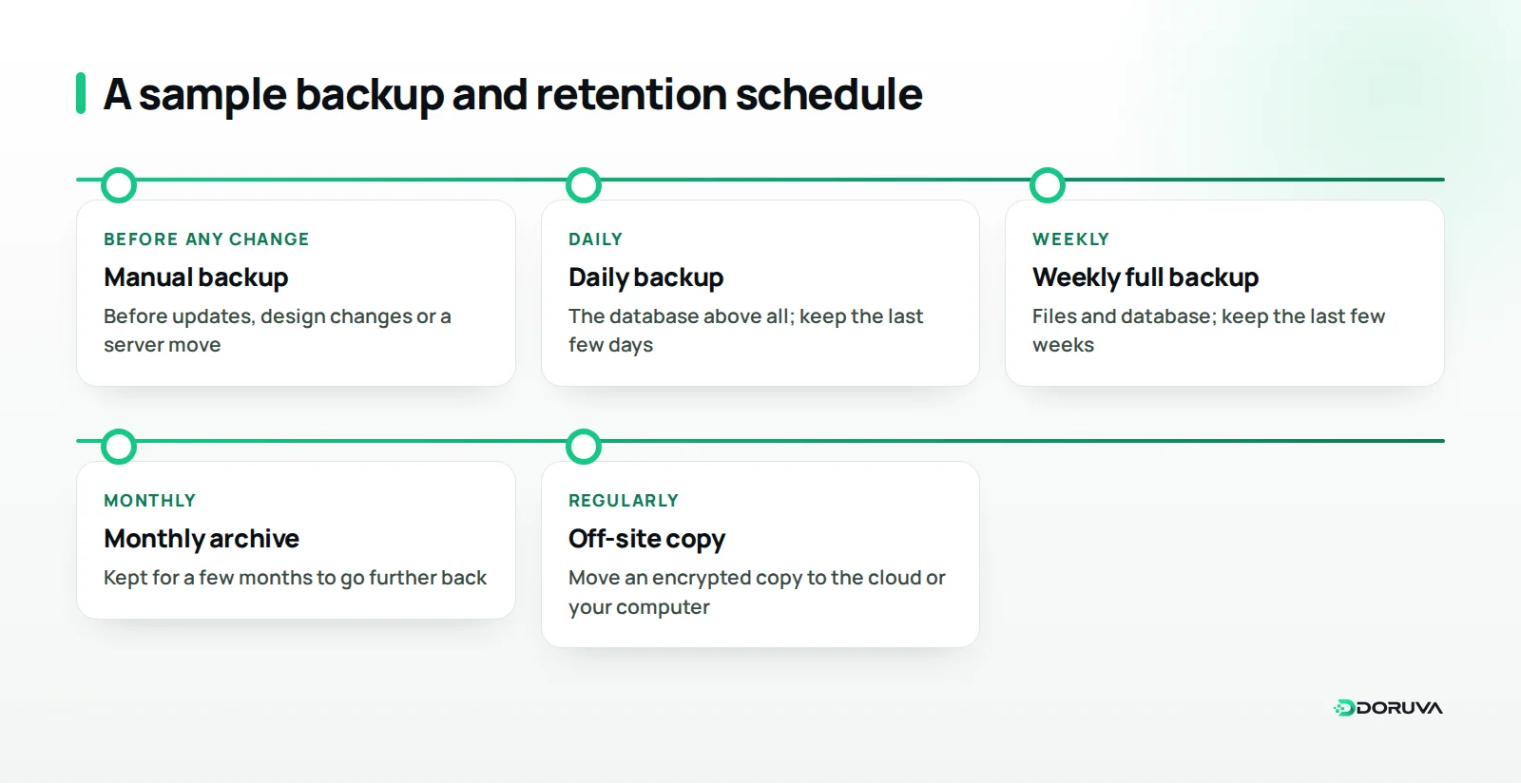
The right frequency depends on how fast your site changes. A law firm that publishes a few posts a month may be fine with weekly backups; a shop taking dozens of orders a day should back up its database at least daily. For retention, a tiered approach works well: daily backups for the last few days, weekly ones for the last few weeks, and a few monthly ones. That way you can still reach a clean point if a problem takes a while to notice.
Picture a 12-person agency looking after twenty client sites. Writing down one rule for all of them, such as "daily database, weekly full backup, a monthly off-site copy and a restore test every quarter", makes the team's work easier and makes clear what you've promised each client.
Whatever your schedule, always take a manual backup before updating WordPress, a theme or a plugin, before a major content or design change, and before a server move. The full backup you take at the start of a website redesign is the only safe way back to the old site if you need it.
Encryption and keeping backups safe
A WordPress backup is as sensitive as the site itself: the database holds users' email addresses and password hashes, orders hold customer details, and wp-config.php holds the database password. Treat backups with the same care as live data.
- Keep them out of public folders: a zip or SQL file left in public_html can be downloaded by anyone who guesses its name. Store backups outside the web root or in a folder that blocks direct access.
- Encrypt them: protect archives that leave the server with encryption, and don't store the password next to the backup. Our password generator creates long, random passwords.
- Limit access: only people who genuinely need it should reach the cloud folder and the backup downloads.
How do you restore a WordPress backup?
How you restore depends on the state of the site: if the dashboard loads, a plugin can restore in a few clicks; if it doesn't, you go through the hosting panel or replace the files and database by hand. Either way, take a copy of the current, broken site first; you may need it later to work out what went wrong.
If wp-admin loads
Open the backups screen of the plugin that made the backup, pick the one you want and restore it. Afterwards, re-save permalinks and clear the cache.
If wp-admin won't load
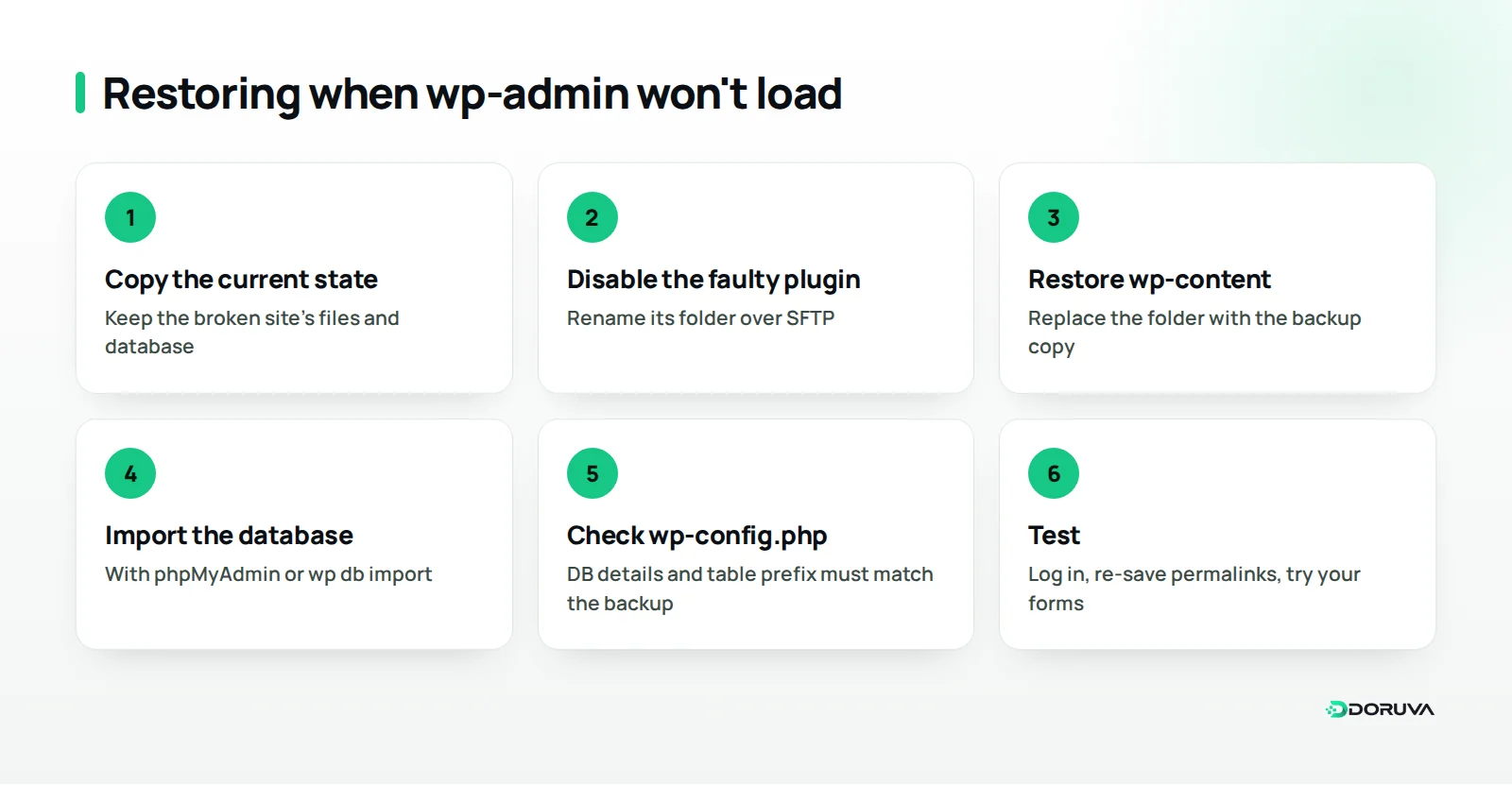
With a white screen, a critical error message or a site damaged by an attack, you can't reach the plugin screens. In that case:
- If a plugin update caused the problem, try disabling that plugin by renaming its folder under wp-content/plugins over SFTP.
- If that doesn't help, replace the wp-content folder with the copy from your backup.
- In phpMyAdmin, drop the current tables and import the SQL file from the backup, or use
wp db importover SSH. - Check that the database details and table prefix in wp-config.php match the backup.
- Open the site, log in, re-save permalinks and test your forms.
If the site was hacked, restore a clean backup from before the problem started, then change every password and update WordPress, themes and plugins. Otherwise the same hole can be used again before long.
Test your restores
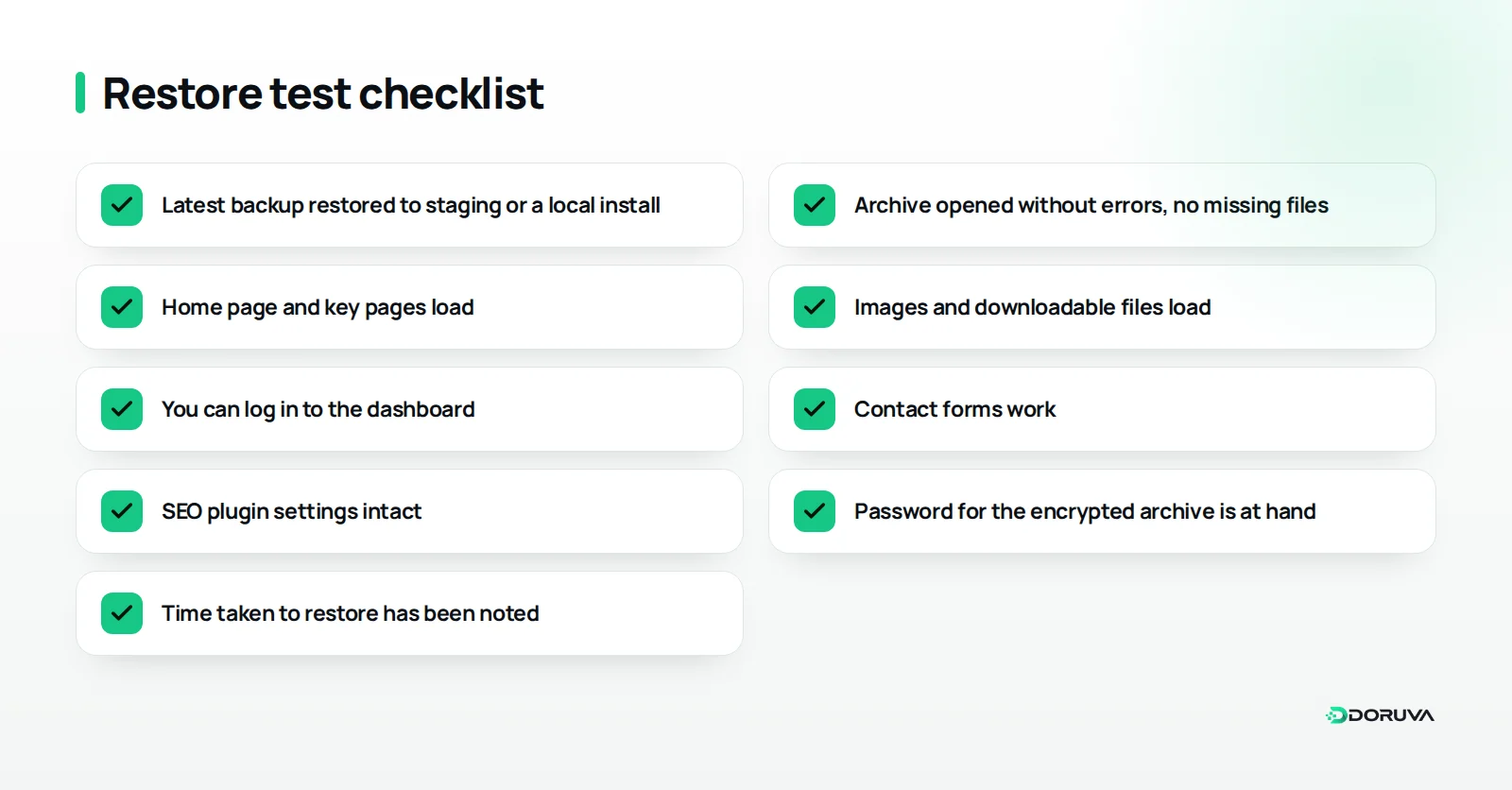
An untested backup is only a hope. Every few months, restore your latest backup to a staging environment or a local install and confirm the site really comes up. Besides pages, images and forms, check that your SEO plugin's settings came back intact; our WordPress SEO settings guide lists the ones to look at.
How do backups and restores work in Doruva Migrate?
Doruva Migrate is a free WordPress backup and migration plugin built by Doruva, coming soon to WordPress.org. It backs up the site, with its database, media, themes and plugins, into a single .doruva archive.
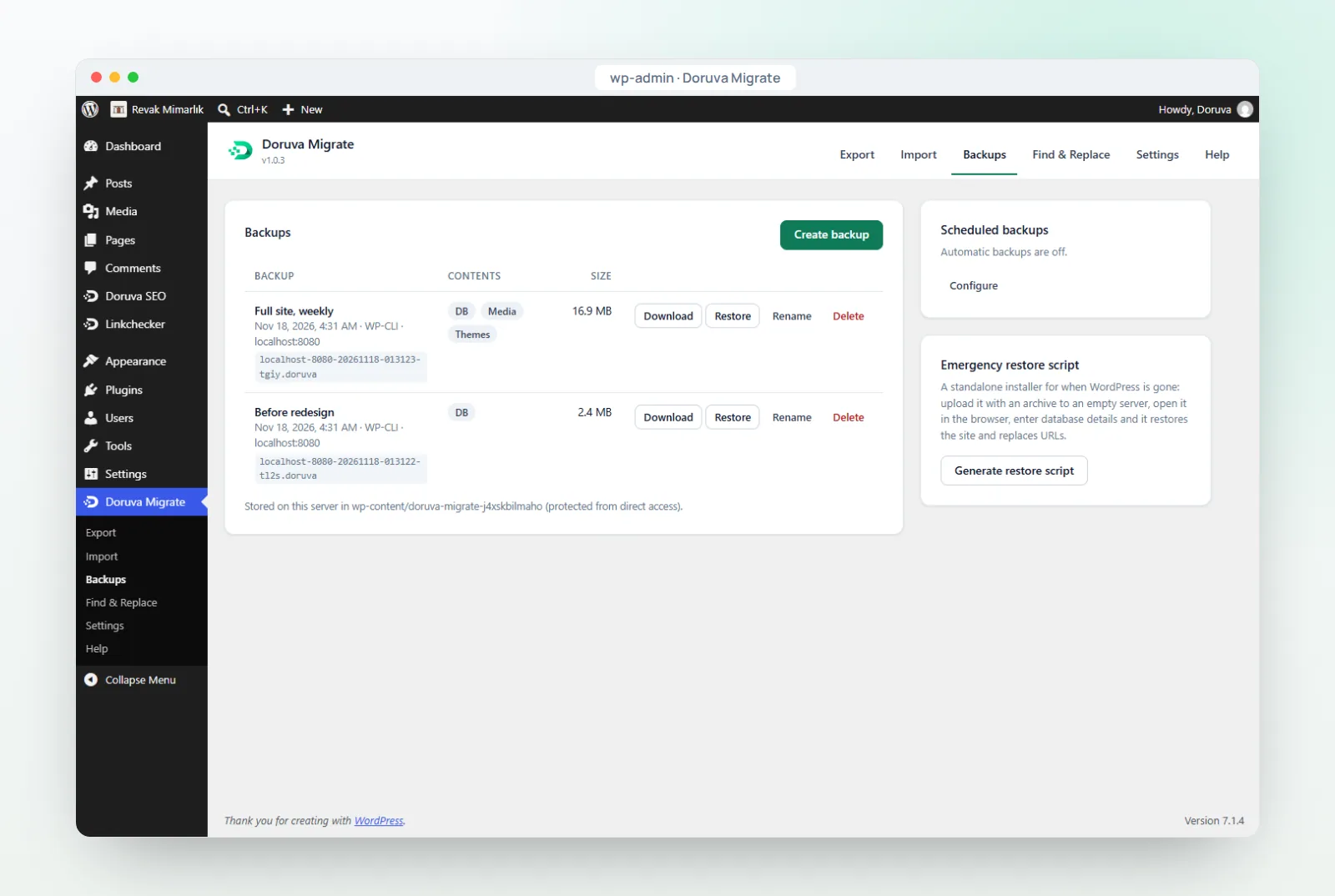
- Backups list: every backup is listed with its date, size, contents and labels; you can download, restore, rename or delete it.
- Scheduled backups: in Settings, set up daily, weekly or monthly automatic backups and choose to keep the last N.
- Protected folder: the backup folder has a random name and blocks direct access; downloads are open to administrators only.
- Encryption: you can create the archive as an AES-256 password-protected file.
- Emergency restore script: if WordPress is completely down, you create a standalone script protected by a one-time password, upload it with the archive to an empty server and open it in a browser. It unpacks the files, imports the database, replaces URLs, writes wp-config.php and deletes itself.
Cloud storage isn't supported yet, so to follow the 3-2-1 rule you need to download copies regularly and keep them off the server. Features can change between versions; check the current list on the product page and on the Doruva WordPress plugins page.
Common WordPress backup mistakes
Backup trouble usually comes not from having no backup but from having one that doesn't work when it's needed. These are the mistakes we see most:
- Backing up only the database, or only the files: a database without images, or a theme folder without content, won't bring the site back.
- Keeping every backup on the same server: when the server fails or the account closes, the backups go with it.
- Leaving backups in public_html: a publicly reachable archive exposes all of the site's data.
- Unlimited retention: the disk fills up, new backups fail, and you usually find out on the day you need one.
- Never testing a restore: a corrupt or incomplete archive only shows itself during a restore.
- Skipping the backup before updates: a large share of problems appear right after an update.
Summary and next steps
Backing up WordPress means regularly copying the database and the wp-content folder and keeping those copies somewhere safe, off the server. The hosting panel, a plugin and the manual method aren't alternatives so much as layers that complement each other. Follow the 3-2-1 rule, set a retention policy, encrypt your archives and test restores regularly, so you know today what you'll do on the worst day.
If you'd like a professional team to handle your site's maintenance, regular backups and, when needed, its migration, explore our web design services or tell us about your site.
Frequently Asked Questions
How often should I back up my WordPress site?
It depends on how fast the site changes. Weekly is often enough for a business site that rarely changes; a store taking orders should back up its database at least daily. Take an extra manual backup before every update.
Are my web host's backups enough?
Not on their own. They usually sit on the same infrastructure as your site and the provider decides how long they're kept, so take at least one copy yourself and store it off the server.
Do I need to back up the WordPress core files?
Not strictly, because core files can be downloaded again from the official package. What matters is the database, the wp-content folder and wp-config.php.
Can I restore a WordPress backup to a different site?
Yes, that's effectively a migration. If the address changes, replace the URLs in the database with a tool that doesn't break serialized data.
Where is it safe to store backup files?
Outside the web root in a folder that blocks direct access, with at least one encrypted copy off the server, for example in cloud storage or on your own computer.