

What is Web Accessibility (WCAG)?
Definition
Web accessibility is the practice of designing and building websites so that people with disabilities can perceive, understand, navigate and interact with them, including people who use screen readers, keyboards, magnification or voice control. The main international reference is the W3C's Web Content Accessibility Guidelines (WCAG), currently version 2.2, which defines three conformance levels: A, AA and AAA.
Also known as: accessibility, WCAG, a11y, digital accessibility
Who it serves
Accessibility is often assumed to be a tweak for blind users. The scope is much wider: people with visual, hearing, motor and cognitive disabilities; someone with a broken arm who can't use a mouse; anyone squinting at a screen in sunlight or watching a video on mute in a noisy place. Changes in vision and fine motor control that come with age create the same needs. Captions, sufficient contrast and keyboard-friendly forms therefore help far more people than any single group.
WCAG 2.2 at a glance
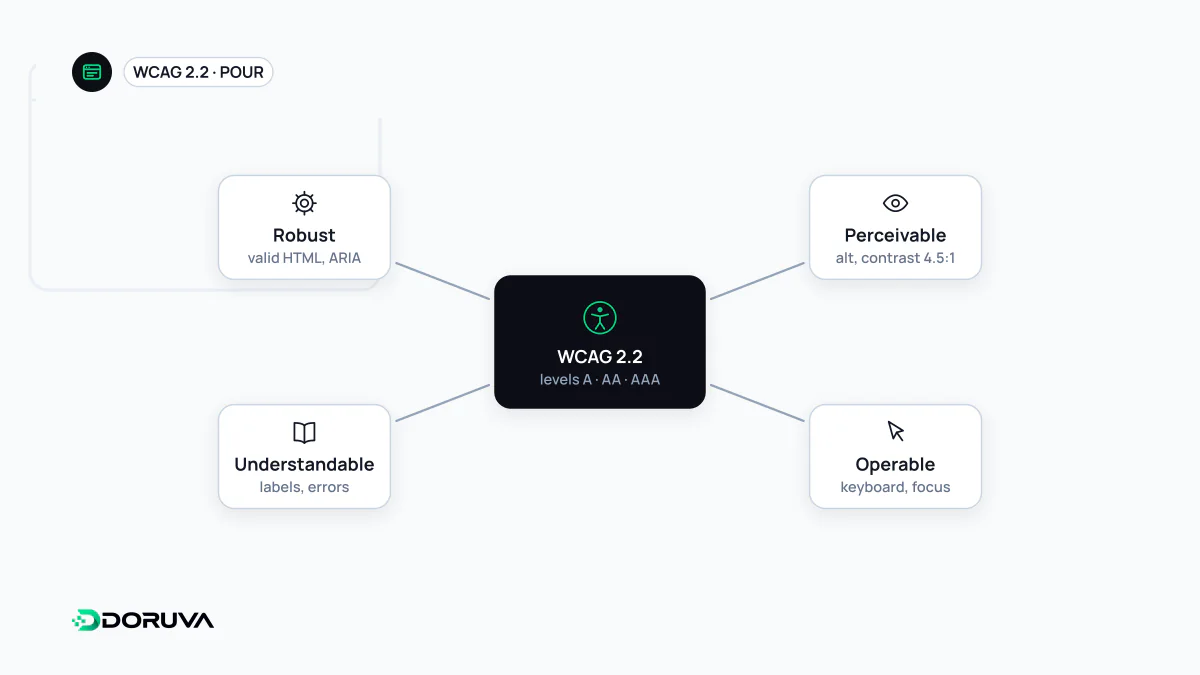
WCAG 2.2 became a W3C Recommendation on 5 October 2023 and was updated on 12 December 2024. According to the W3C it is also approved as an ISO standard, ISO/IEC 40500:2025. The guidelines are organised around four principles:
- Perceivable: information is presented in ways users can perceive (text alternatives for images, captions for video, enough contrast).
- Operable: everything works from a keyboard, users get enough time, navigation is straightforward.
- Understandable: text is readable, pages behave predictably, forms explain errors and help prevent them.
- Robust: content works reliably with different assistive technologies, including screen readers.
| Level | What it means |
|---|---|
| A | The baseline; if it isn't met, some users can't access the content at all. |
| AA | The level most organisations and policies aim for; includes all level A criteria. |
| AAA | The highest level. The W3C does not recommend requiring AAA as a general policy for entire sites, because some content cannot meet every AAA criterion. |
What 2.2 added
WCAG 2.2 adds nine success criteria to 2.1. Among them: a focused element must not be entirely hidden by things like sticky headers (2.4.11, AA); actions that need dragging must have a single-pointer alternative (2.5.7, AA); touch targets must be at least 24 by 24 CSS pixels, with exceptions (2.5.8, AA); logging in must not depend on a cognitive function test such as solving a puzzle or memorising information (3.3.8, AA); help links stay in a consistent place across pages (3.2.6, A); and information already entered in a process isn't asked for again (3.3.7, A). Criterion 4.1.1 Parsing was removed as obsolete. See the W3C's What's New in WCAG 2.2 for the full list and the WCAG 2.2 specification for the criteria themselves.
Accessible HTML in practice
<!-- Informative image: describe what it shows -->
<img src="team.jpg" alt="Five people at a whiteboard sketching a page layout">

<!-- Decorative image: empty alt so screen readers skip it -->
<img src="divider.svg" alt="">

<!-- Label programmatically tied to its field -->
<label for="email">Email address</label>
<input id="email" type="email" autocomplete="email">

<!-- A real button instead of a clickable div -->
<button type="button" aria-expanded="false">Menu</button>
Native HTML elements bring keyboard support, focusability and the right role information for free. Reach for ARIA only where HTML can't express what you need; incorrect ARIA can be worse than none. A logical heading structure is also one of the main ways screen reader users move around a page.
Common mistakes
- Low contrast: level AA requires at least 4.5:1 for normal text and 3:1 for large text.
- Removing the focus indicator, or menus and dialogs you can tab into but not out of (keyboard traps).
- Unlabelled form fields, and information conveyed by colour alone ("fill in the fields marked red").
- Disabling zoom through the viewport settings.
- Images of text and videos that autoplay with sound.
- Assuming a bolt-on widget will fix everything instead of correcting the source markup.
Most of these can be solved once at component level; building accessibility into a design system stops the same issues from reappearing on every new page.
How to test a site
- Automated scans: tools such as Lighthouse or axe quickly catch missing alt text, low contrast and unlabelled fields. They can't judge many criteria, such as whether alt text is meaningful, so a clean report doesn't mean an accessible site.
- Keyboard check: put the mouse away and use only Tab, Shift+Tab, Enter and Space. Is focus always visible, and is the order logical?
- Zoom and reflow: enlarge text to 200% and check that content at 320 CSS pixels wide reads without horizontal scrolling. This is where responsive design directly serves accessibility.
- Screen reader: walk through key flows (navigation, forms, checkout) with NVDA, VoiceOver or TalkBack.
- Testing with users: sessions with people who use assistive technology reveal problems no tool can see.
Legal accessibility requirements vary by jurisdiction and sector, and this entry is not legal advice; check the rules that apply to you with a qualified adviser.