

What is Branch (Git)?
Definition
A branch in Git is a lightweight, movable pointer to a commit that advances as new commits are added. It opens an independent line of development: a feature or fix is built on its own branch and, once ready, merged back into the main branch. When both sides have changed the same lines differently, Git reports a merge conflict and a person decides which change wins.
Also known as: Git branch, feature branch, merge, merge conflict, branching strategy
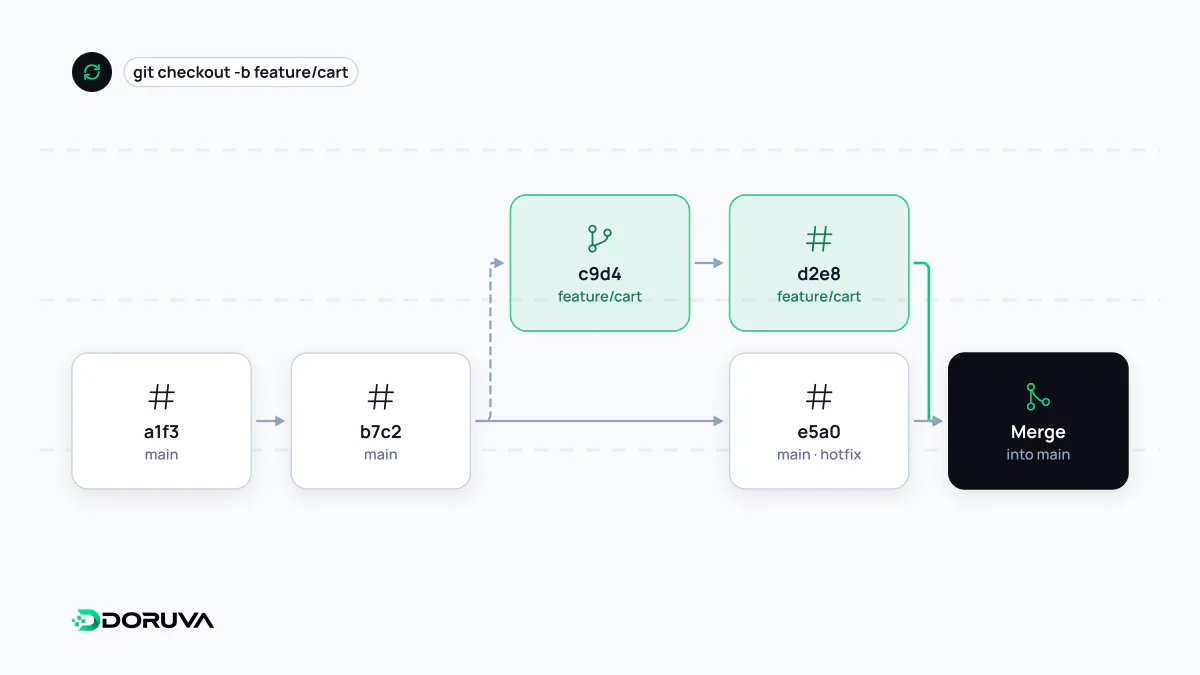
A branch is just a pointer
People picture a branch as a copy of the code, but in Git it is a tiny reference holding a commit ID. Creating one copies no files, so it is instant and practically free. Each commit you make while on that branch moves the pointer forward, and HEAD records which branch you currently have checked out.
git switch -c feature/contact-form   # create a branch and switch to it
git branch                           # list local branches
git switch main                      # back to main
That cheapness shapes how teams work: every task gets its own branch, main stays releasable, and half-finished work never lands there.
Merging two lines of work
When the work is done, the branch is merged into main. There are two basic outcomes:
- Fast-forward: if main has not moved since you branched, Git simply slides the main pointer up to your latest commit. No merge commit is created.
- Three-way merge: if both sides moved, Git compares the common ancestor with both tips, combines the changes and records a merge commit with two parents.
rebase is the alternative: it replays your commits on top of the current tip of main, producing a straight-line history. Because it rewrites commit IDs, rebasing commits that others have already pulled causes confusion and is best avoided on shared branches.
Where merge conflicts come from
Git merges changes to different files, or to different parts of the same file, on its own. When both branches changed the same lines in different ways, it cannot know which is right and stops to ask:
<<<<<<< HEAD
const MAX_UPLOAD_MB = 10;
=======
const MAX_UPLOAD_MB = 25;
>>>>>>> feature/large-uploads- Work out what each side was trying to achieve; the correct result is often a combination, not a blind pick.
- Edit the file and remove every marker (
<<<<<<<,=======,>>>>>>>). - Run the tests: a resolution that compiles but behaves wrongly is worse than the conflict itself.
- Stage the file with
git addand complete the merge.
The best prevention is keeping conflicts small: short-lived branches, pulling from main often and small pull requests. Merging one branch that lived for three weeks hurts far more than merging five that each lived a day.
Branching strategies compared
| Strategy | How it works | Good fit |
|---|---|---|
| Trunk-based development | Everyone merges small changes into main very frequently; branches live hours or a couple of days, unfinished features hide behind feature flags | Teams with strong test automation and continuous deployment |
| GitHub flow | One long-lived branch (main); a branch and pull request per change, merged and deployed after approval | Most web applications, small to mid-sized teams |
| Git Flow | Extra long-lived branches such as develop, release and hotfix | Software shipped as numbered versions, with several versions supported at once |
For a website that deploys continuously, Git Flow is usually more ceremony than it is worth; the longer its parallel branches drift apart, the more each merge costs.
Branches and environments
Many teams wire branches to environments: every pull request gets an automatic preview deployment, and a merge to main flows through the CI/CD pipeline to a staging environment first and to production after sign-off. Keeping a separate long-lived branch per environment (a staging branch and a production branch) tends to let code silently diverge between them; promoting the same commit through each stage of deployment is usually more predictable.